Project Settings
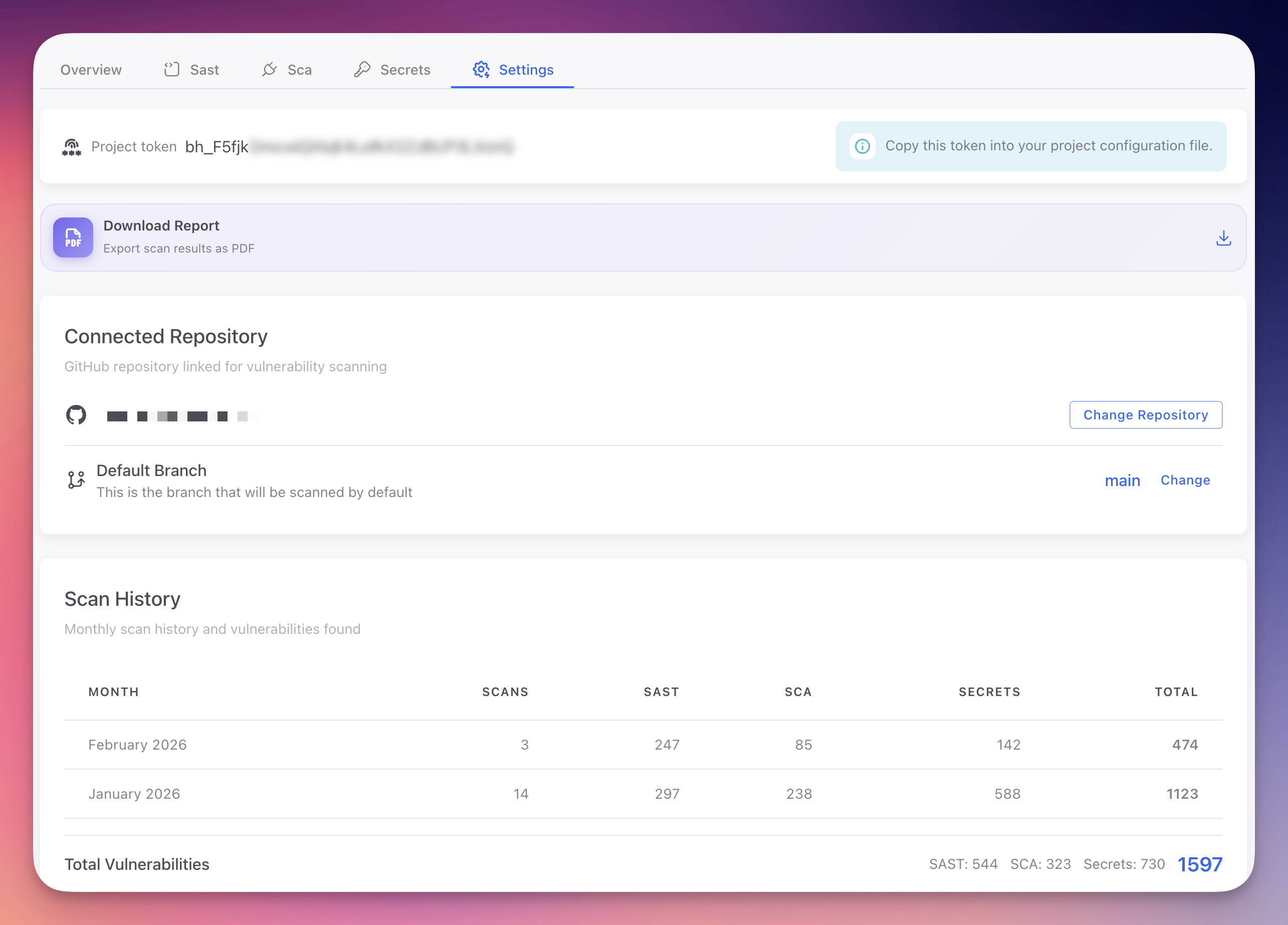
Project settings allow you to configure your Radar project, manage your project token, set the default scanning branch, and access scan history and reports.
 Click to expand
Project Token
Your project token authenticates API requests and CI/CD integrations. It is displayed at the top of the project settings page.
- The token is partially masked by default for security
- Click the copy icon to copy the full token to your clipboard
- Use in the
Authorization: Bearer {project-token}header for API calls - Store securely in your CI/CD platform's secret management
Keep Your Token Secure
Anyone with the token can access your project's scan results via the API. If compromised, use Reset Token to generate a new one immediately.
Connected Repository
The connected repository section shows the GitHub repository linked to your project:
- Repository name: displayed with a link to GitHub
- Change repository: select a different repository from your connected GitHub account
- Unlink repository: removes the connection while preserving scan history and findings
Changing the connected repository does not delete previous scan results.
Default Branch
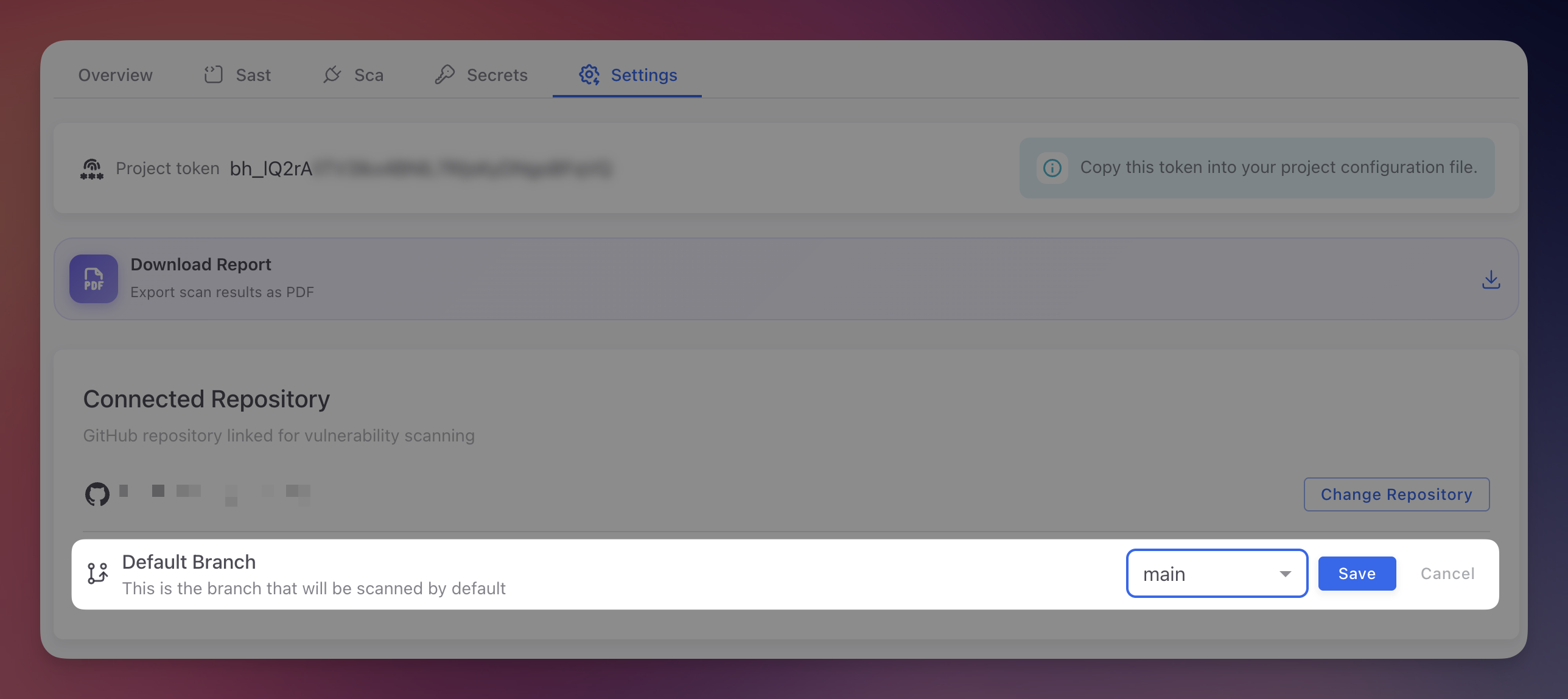
The default branch determines which branch is scanned on push events and manual scans.
 Click to expand
- Select the branch using the dropdown selector (
main,master,develop, etc.) - Changes take effect immediately for future scans
- Previous scan results are not affected
Scan History
Monthly breakdown of scanning activity:
| Column | Description |
|---|---|
| Month | Calendar month |
| Scans | Total scans performed |
| SAST | SAST finding count |
| SCA | SCA finding count |
| Secrets | Secret finding count |
| Total | Combined count |
Useful for tracking remediation progress and demonstrating continuous security testing for compliance.
Download Report
Generate a PDF security report with executive summary, finding breakdowns, scan history, and trend analysis. See Reports for details on contents and compliance use cases.
Reset Token
If your project token is compromised or requires rotation:
- Scroll to the Reset Token section
- Click "Reset Token" and confirm
- A new token is generated immediately; the old token is invalidated
Update Your Integrations
Resetting the token breaks existing API integrations and CI/CD pipelines using the old token. Update all integrations with the new token after resetting.
Danger Zone
Delete Project permanently removes the Radar project, including all scan history, findings, settings, and the connected repository link. This action cannot be reversed.
Next Steps
GitHub Integration
Configure and manage your GitHub repository connection for scanning and AutoFix.
API Reference
Use the Radar REST API to programmatically trigger scans and retrieve findings.
CI/CD Integration
Integrate Radar into your build pipeline for automated security scanning.