Dashboard Overview
The Radar dashboard provides a real-time view of your project's security posture. It aggregates findings from SAST, SCA, and Secret scans into a single interface with severity breakdowns, vulnerability trends, and direct access to every finding.
Overview Tab
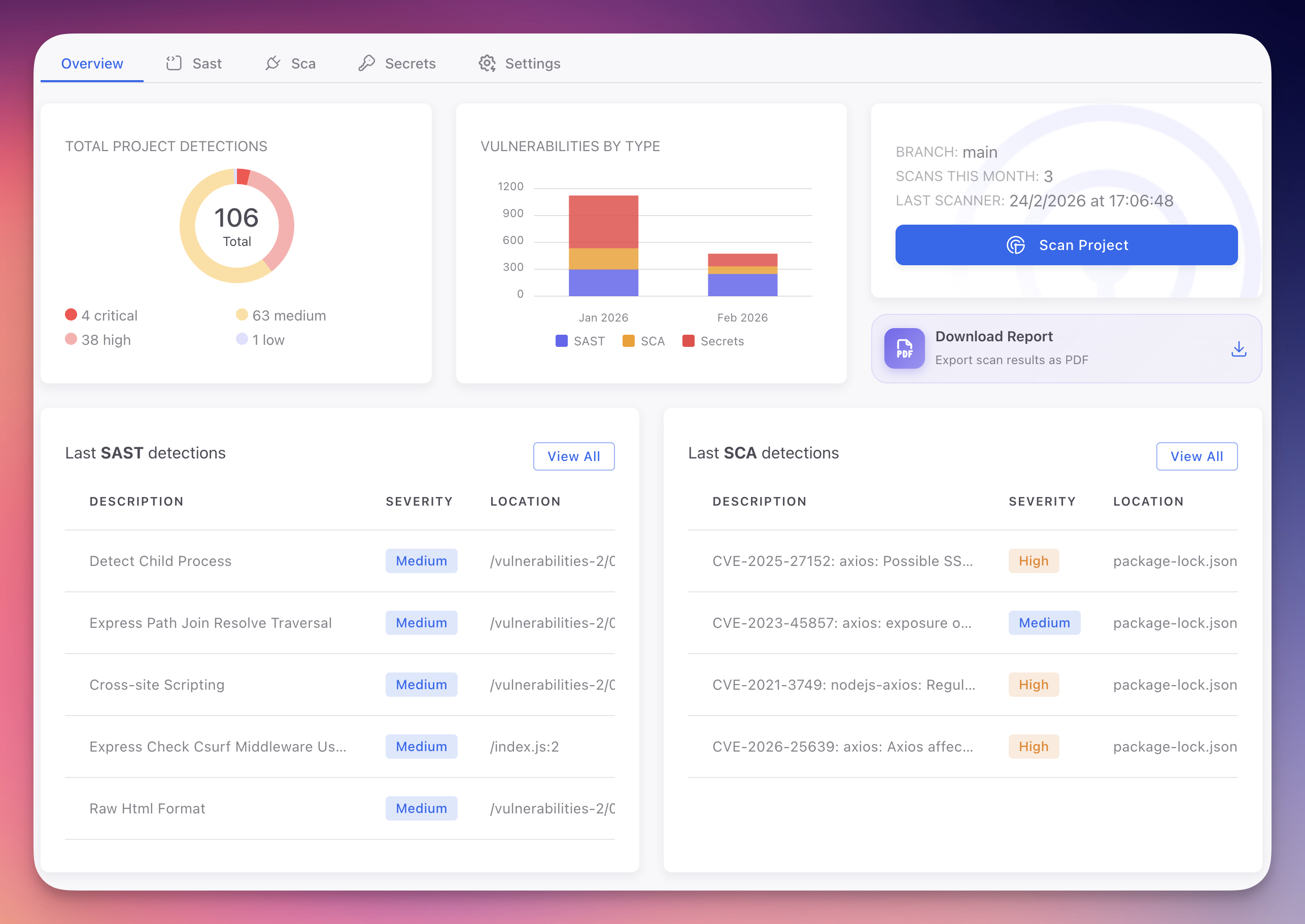
The Overview tab is the default view when you open a Radar project. It presents an aggregated summary across all scan types.
 Click to expand
| Section | Description |
|---|---|
| Total Project Detections | Donut chart showing finding distribution by severity: Critical, High, Medium, and Low. Click any segment to filter |
| Vulnerabilities by Type | Trend chart tracking SAST, SCA, and Secret findings over time. Identify spikes, confirm remediation progress, and monitor your security posture |
| Branch and Scan Controls | Current branch, scan count this month, last scan timestamp, and Scan Project button to trigger a manual scan |
| Download Report | Export scan results as a PDF for compliance audits and management reviews. See Reports |
| Last SAST Detections | Most recent code vulnerabilities with description, severity, and file location |
| Last SCA Detections | Latest CVE findings with identifiers, severity, and affected package |
Each summary table includes a "View All" link to the full findings tab.
SAST Tab
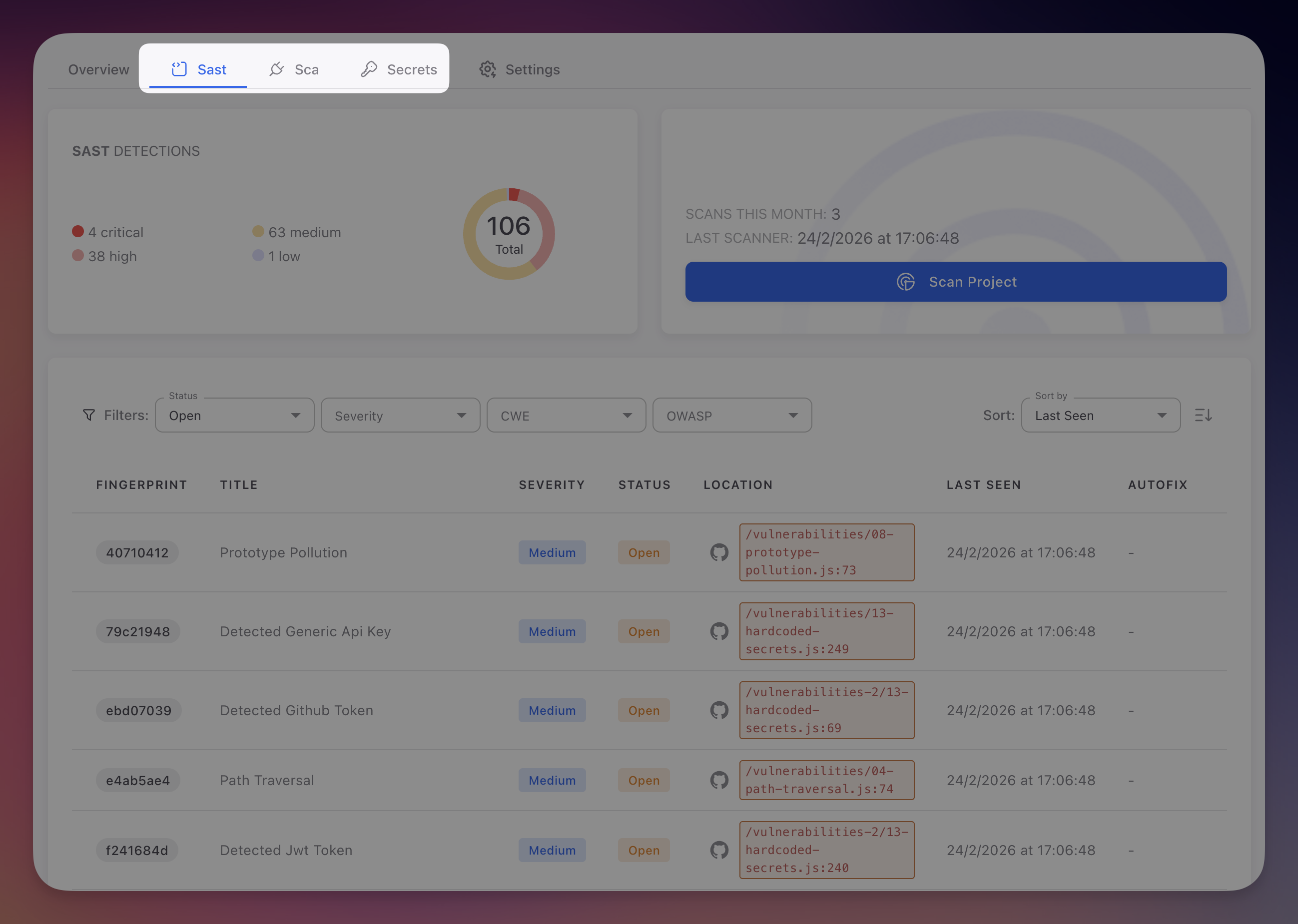
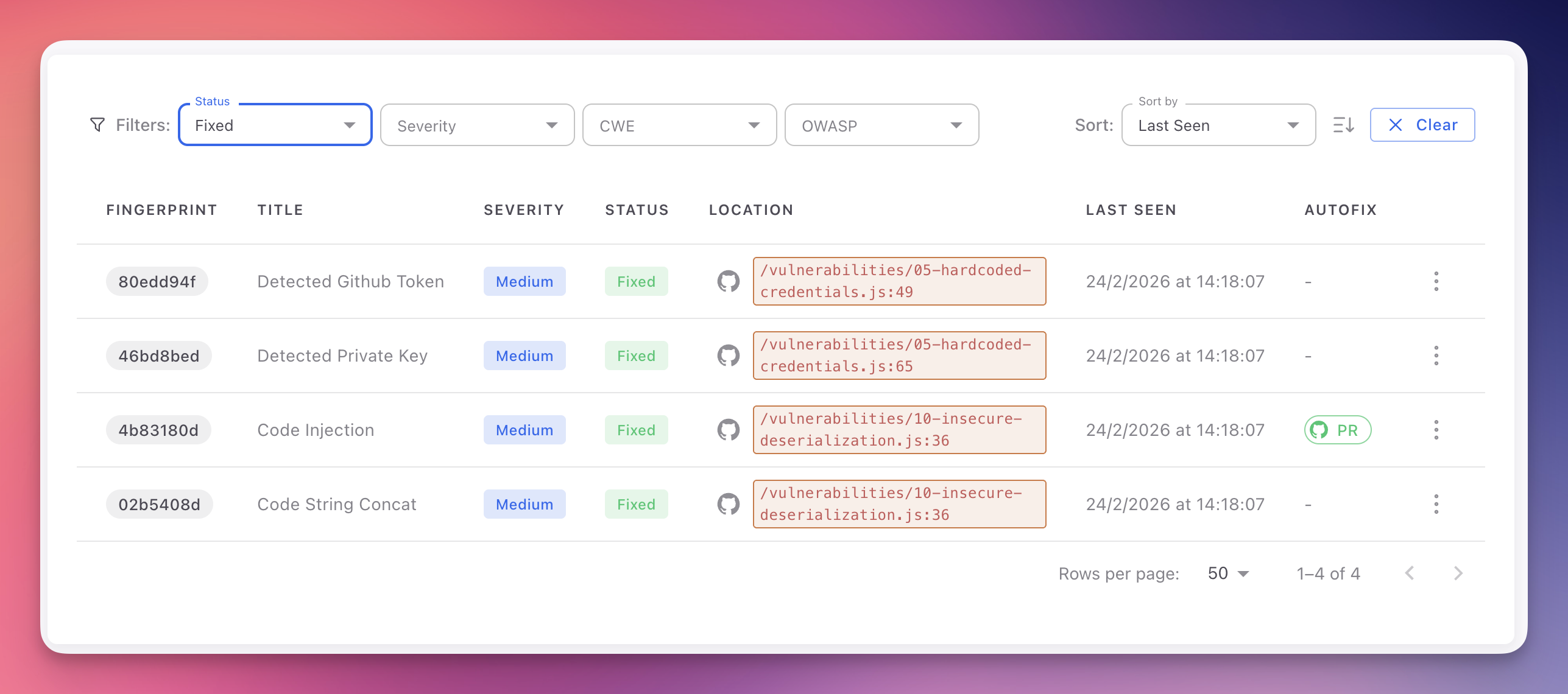
The SAST tab displays all code-level vulnerabilities detected by static analysis. Each finding includes a fingerprint, title, severity, status, file location with GitHub link, last seen timestamp, and AutoFix availability.
 Click to expand
Filter by Status, Severity, CWE identifier, and OWASP Top 10 category. Click any finding to open the detail panel with code context, AI explanation, and AutoFix.
For full documentation on SAST findings, severity criteria, detail panels, and triage workflows, see:
SCA Tab
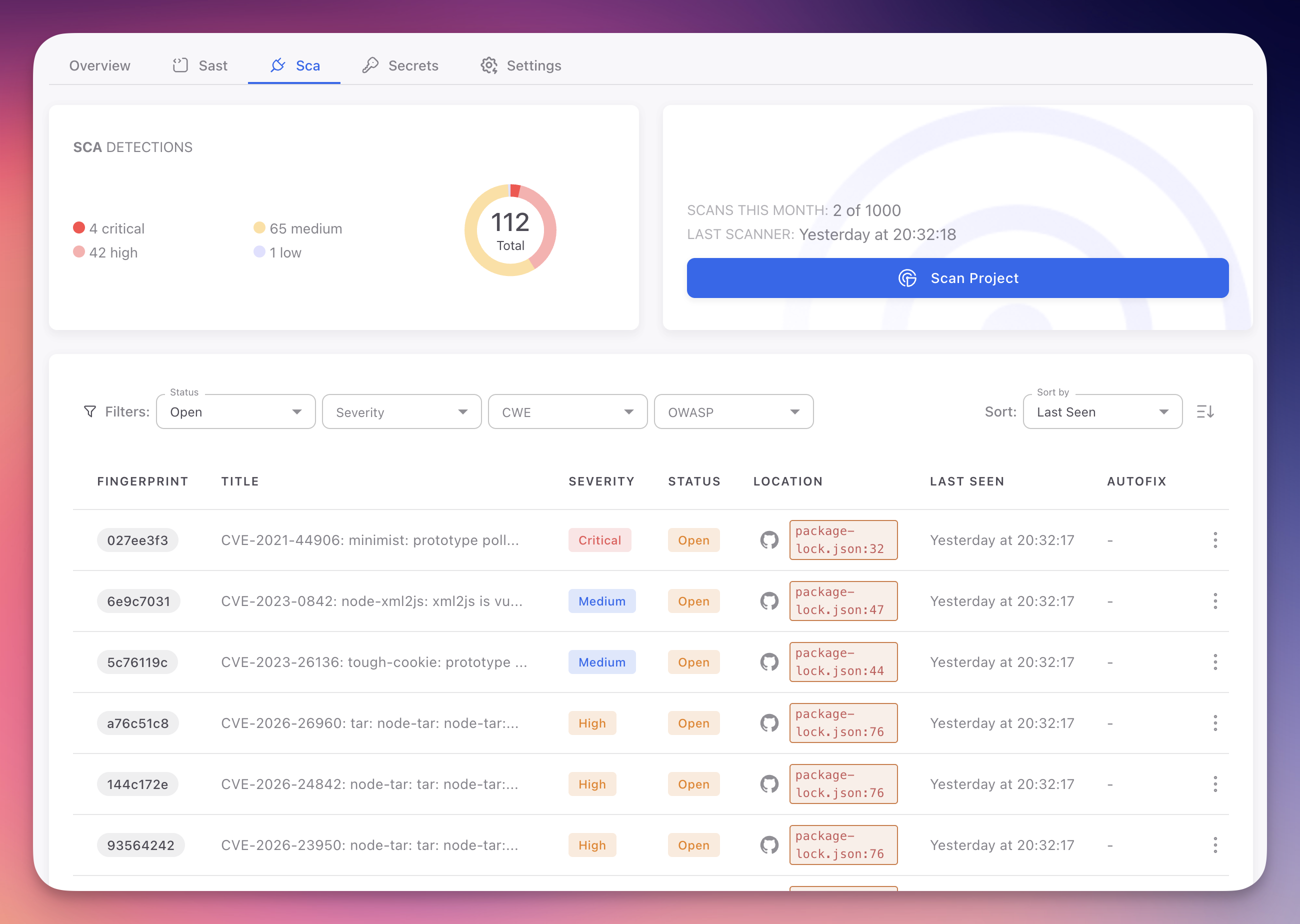
The SCA tab shows vulnerable dependencies detected in your project's manifest and lock files. Each finding maps to a specific CVE with the affected package, current version, and recommended fix version.
 Click to expand
Filter by Status, Severity, CWE, and OWASP category. Click any finding for CVE details, affected version ranges, AI explanation, and AutoFix to upgrade the dependency automatically.
For full documentation on SCA findings, CVE details, and remediation, see:
Secrets Tab
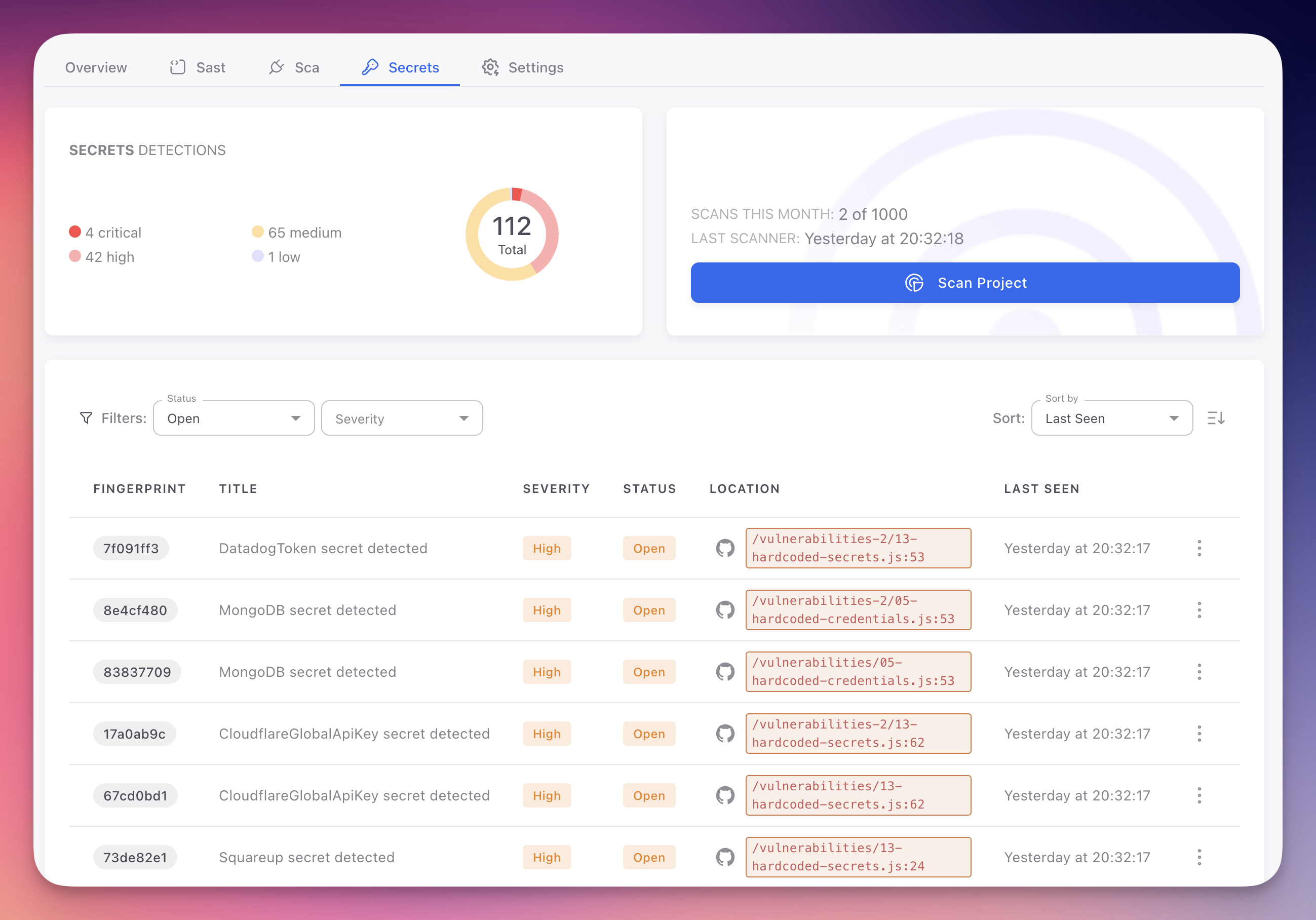
The Secrets tab lists all hardcoded credentials, API keys, tokens, and sensitive values detected in your codebase. Each finding shows the secret type, severity, file location, and whether AutoFix is available.
 Click to expand
Filter by Status and Severity. Click any finding for the masked code snippet, rotation recommendation, AI explanation, and AutoFix to replace the hardcoded value with an environment variable or ByteHide Secrets SDK call.
For full documentation on secret findings, supported types, and remediation, see:
AutoFix Across All Tabs
The AutoFix column appears in every findings tab. When available, you can generate a pull request that fixes the vulnerability directly from the finding detail panel, whether it is a code vulnerability, a vulnerable dependency, or a hardcoded secret.
 Click to expand
AutoFix analyzes the full repository context, generates a complete fix across as many files as necessary, validates it, and opens a PR with a detailed summary. See AutoFix for full details.
Next Steps
AutoFix
AI-powered automated remediation that generates complete, validated pull requests.
Reports
Generate downloadable security reports for compliance and management reviews.
Runtime Correlation
How runtime signals from Monitor reprioritize findings and eliminate false positives.