GitHub Integration
ByteHide Radar integrates directly with GitHub to scan your repositories, create AutoFix pull requests, and trigger automatic scans on code changes.
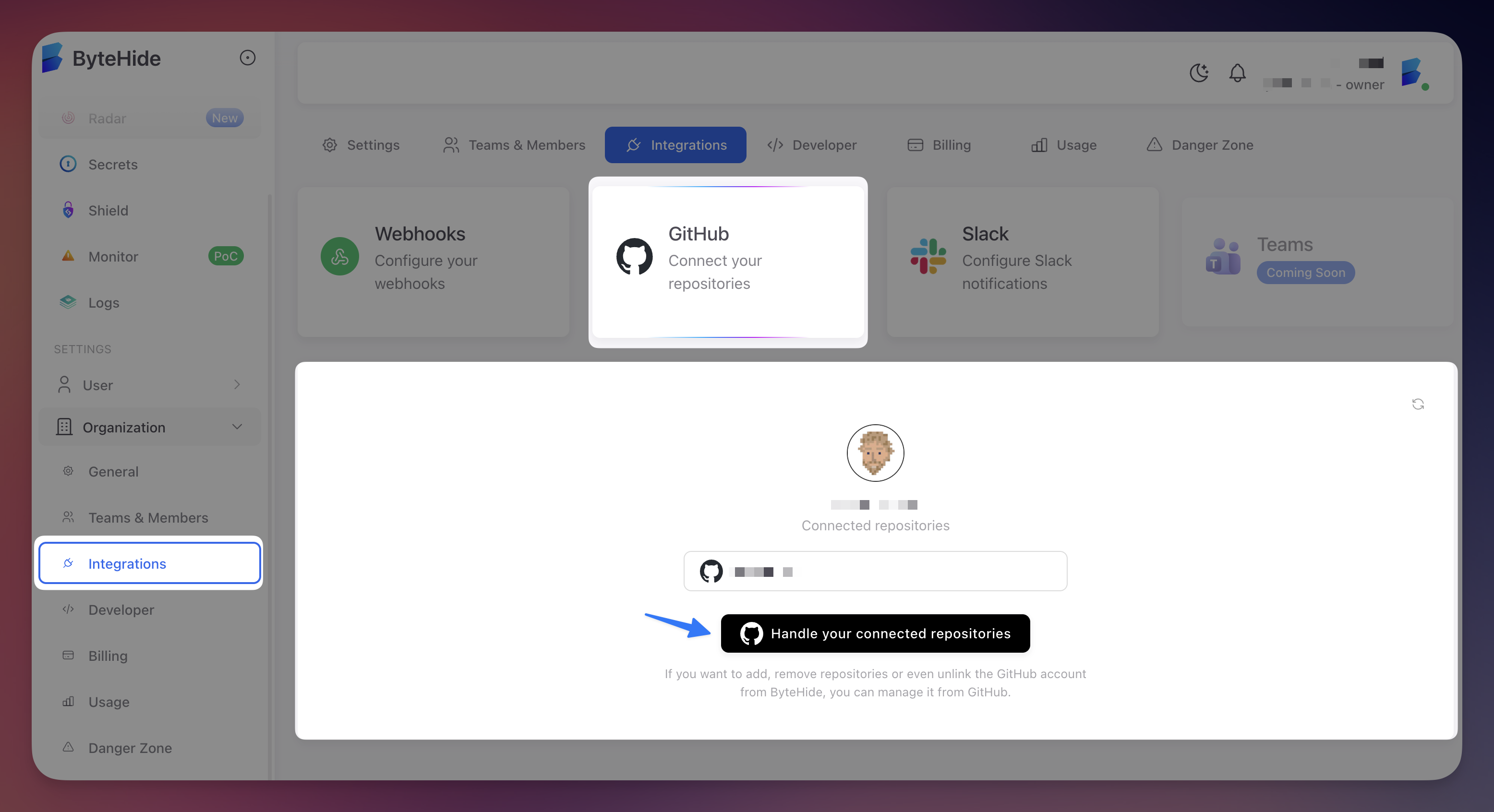 Click to expand
How the Integration Works
Radar connects through the ByteHide GitHub App:
- Read access to repository contents for source code analysis during scans
- Write access exclusively for creating AutoFix branches and pull requests
- Webhook events trigger automatic scans on push and pull request events
- No code storage: analysis is performed in memory; only findings are persisted, not your source code
The integration uses the GitHub App model with granular permission control and does not require personal access tokens.
Connecting a Repository
- Create or open a Radar project from the ByteHide Cloud dashboard
- In the repository connection section, view available repositories from your GitHub account or organization
- If your repositories are not listed, click "Manage Connected Repositories" to install the ByteHide GitHub App
- Select your repository from the dropdown
- Click "Link Repository" to connect it
Managing Repository Access
The ByteHide GitHub App can be configured for selected repositories or all repositories in your organization.
To add or remove repository access:
- Go to GitHub Settings > Applications > ByteHide
- Click Configure
- Under "Repository access", add or remove repositories
- Save changes
Organization administrators control which repositories the app can access through organization settings.
Automatic Scanning
| Event | What Happens |
|---|---|
| Push to default branch | Full scan triggers automatically. Results appear within minutes |
| Pull request created/updated | PR branch is scanned to catch issues before merge |
Scans typically complete in 1 to 5 minutes depending on codebase size.
Webhook Requirements
Automatic scanning requires the ByteHide GitHub App installed with push event webhooks enabled. If scans are not triggering, verify the app installation and webhook configuration in GitHub settings.
Changing the Connected Repository
- Open Project Settings
- Click "Change" next to the current repository name
- Select a new repository and confirm
Previous scan history remains in the project. The new repository is scanned on the next trigger.
Unlinking a Repository
- Open Project Settings
- Click "Unlink" next to the connected repository
- Confirm the action
Scan history and findings are preserved. Automatic scanning stops and AutoFix is disabled until a new repository is connected.
AutoFix Branches
When AutoFix is used, Radar creates branches (autofix/* or fix/*) and pull requests in your repository using the GitHub App's write permissions. PRs target your default branch. After merging, safely delete the branch using GitHub's standard cleanup options.
Next Steps
Connect Your Repository
Step-by-step guide to connecting your first repository.
AutoFix
How Radar's AI generates automated code fixes and pull requests.
Project Settings
Configure project token, default branch, and other settings.