Connect Your Repository
Connect a GitHub repository to enable automated security scanning. Once linked, Radar runs SAST, SCA, and Secret Detection on every push and pull request.
Prerequisites
- A Radar project created in ByteHide Cloud
- A GitHub account with access to the repository you want to scan
Connect a Repository
Step 1: Select Your Repository
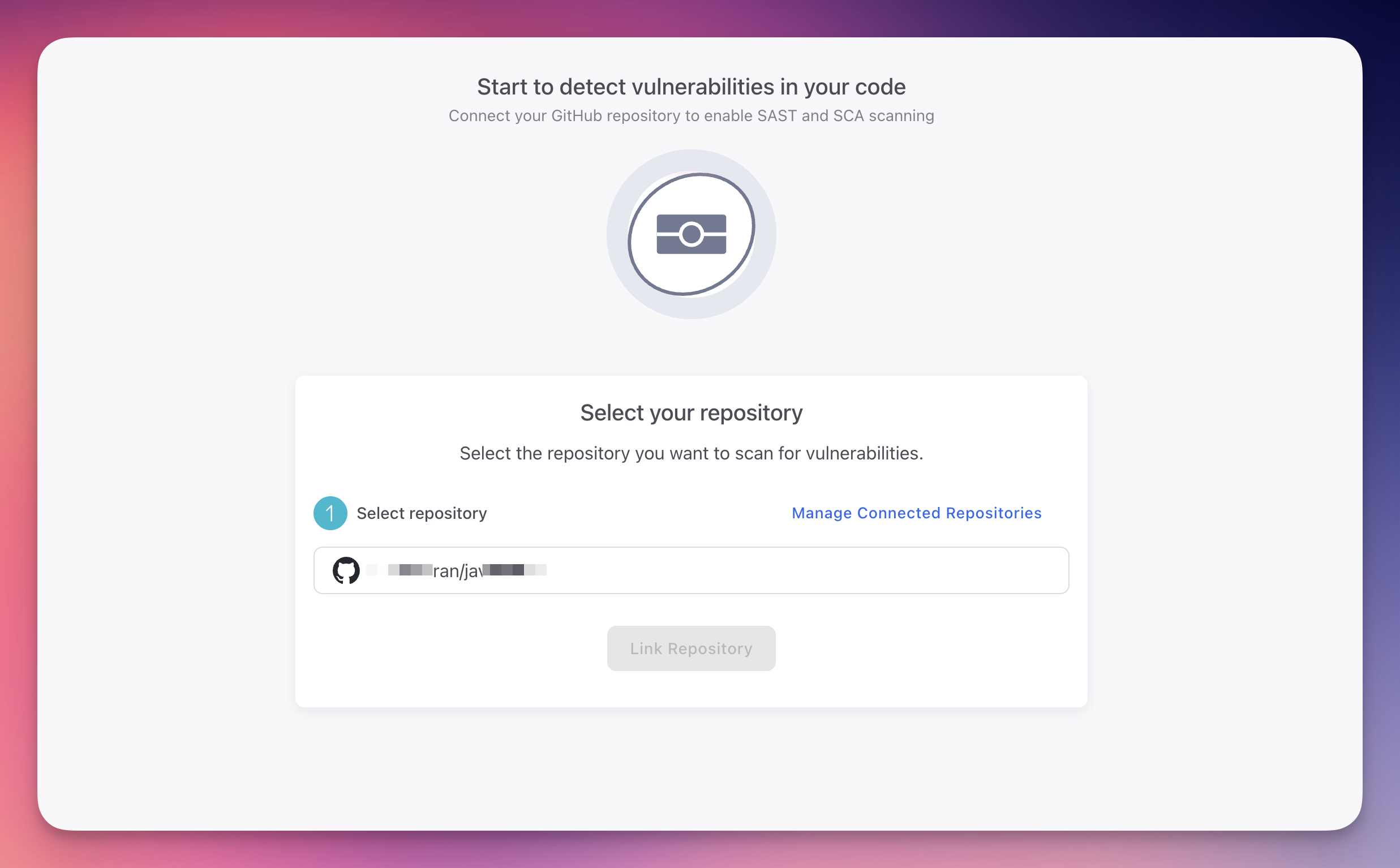
Open your Radar project. If no repository is connected yet, you will see the Start to detect vulnerabilities screen. Select your GitHub repository from the dropdown and click Link Repository.
 Click to expand
GitHub Authorization
If this is your first time connecting, ByteHide will prompt you to authorize GitHub access. You can manage which repositories ByteHide can access from Organization > Integrations > GitHub or from your GitHub account under Settings > Applications.
Step 2: Repository Linked
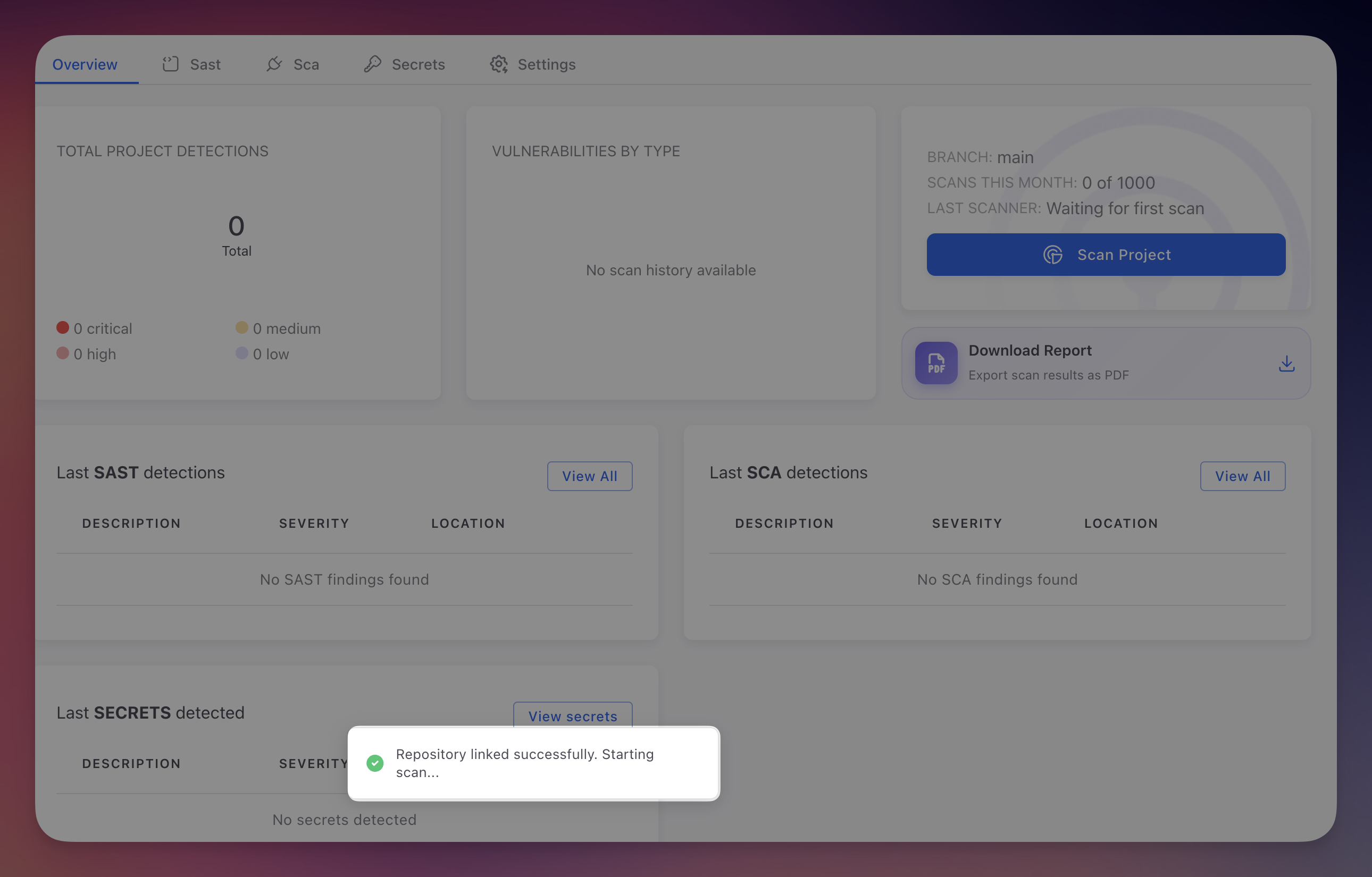
Once linked, you are redirected to the project Overview. A confirmation toast shows "Repository linked successfully. Starting scan..." and the first scan begins automatically.
 Click to expand
First Scan
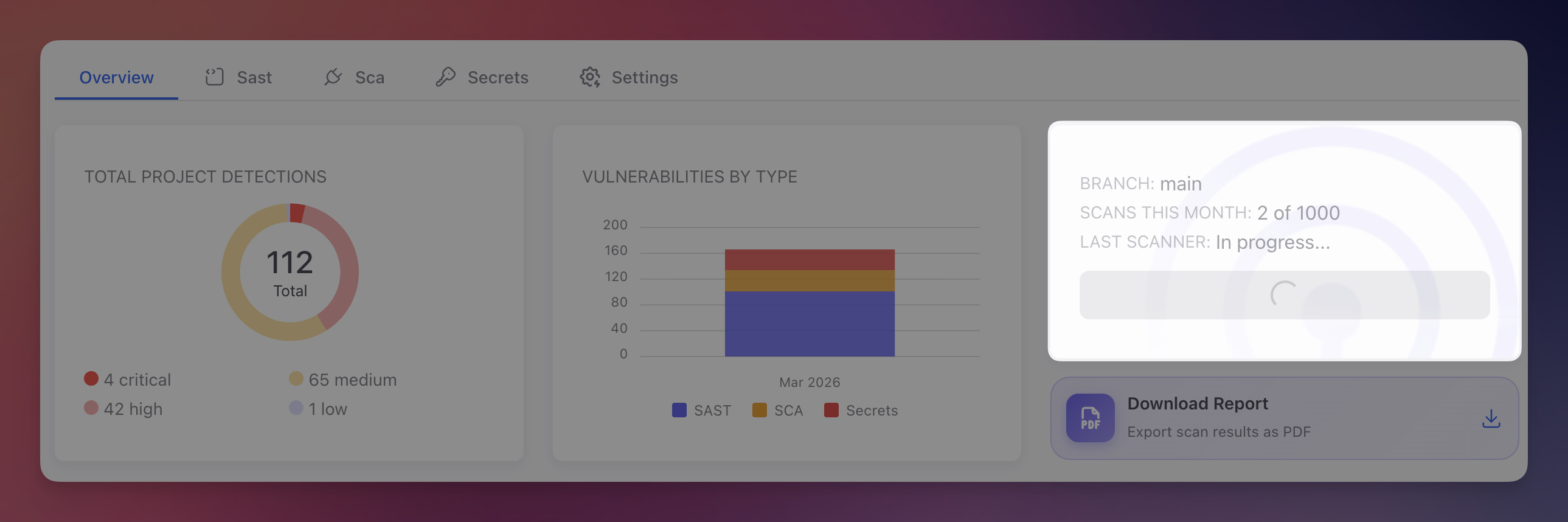
The first scan starts automatically after linking. You can also trigger manual scans anytime by clicking the Scan Project button in the Overview tab.
 Click to expand
During a scan, Radar runs three analysis engines:
- SAST - Scans source code for security vulnerabilities (injection, XSS, broken access control, etc.)
- SCA - Parses dependency manifests (package.json, .csproj, pom.xml, requirements.txt, composer.json, go.mod) to find known CVEs
- Secret Detection - Searches all files for hardcoded credentials, API keys, tokens, and sensitive data
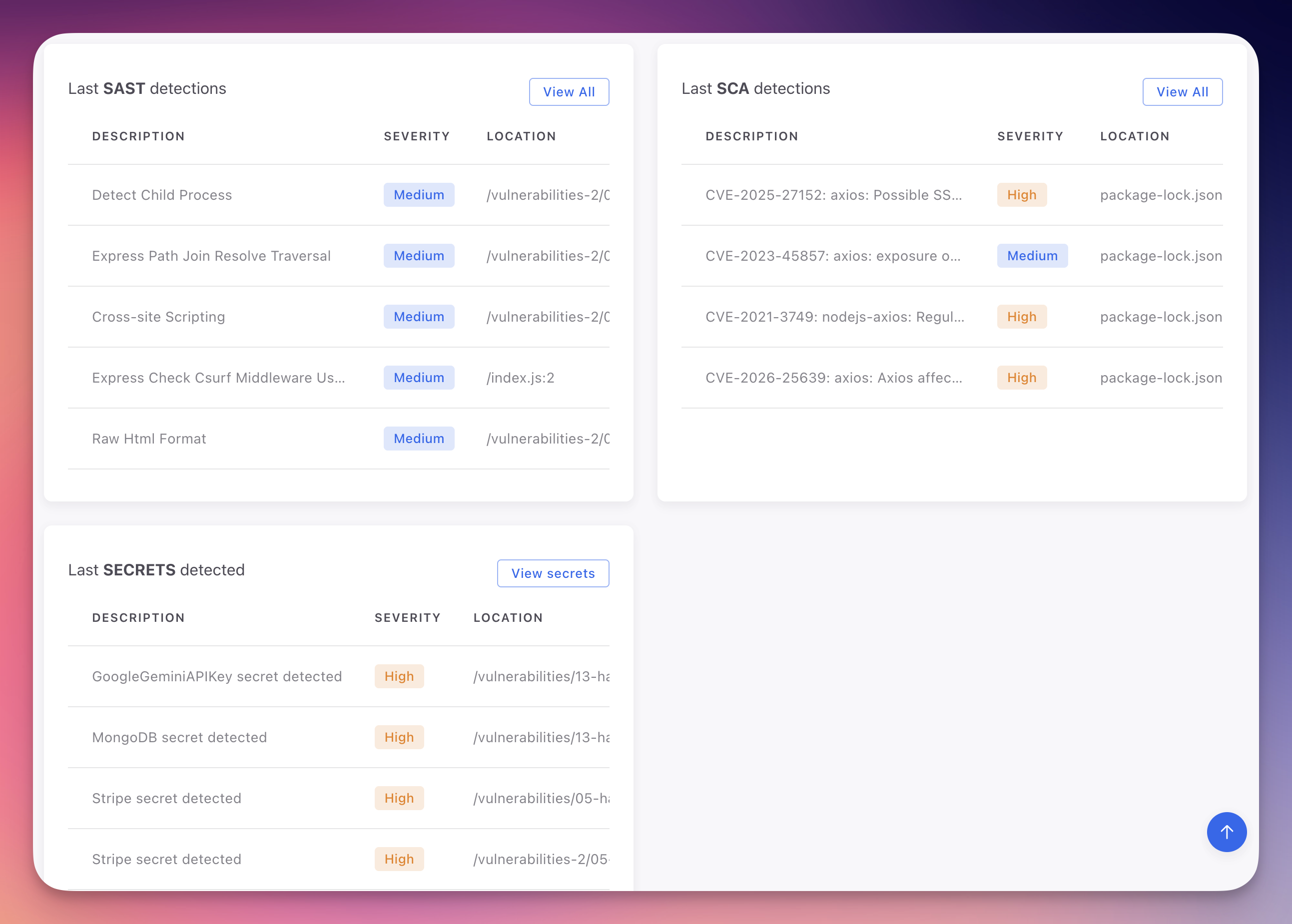
When the scan completes, the Overview shows the latest detections for each type:
 Click to expand
Secrets found? Manage them securely
If Radar detects hardcoded secrets in your code, consider using ByteHide Secrets to store them securely. Detected secrets can be auto-imported into your Secrets vault for rotation and secure distribution to your applications.
Automatic Scanning
After connecting your repository, Radar scans automatically on:
- Push to the default branch - Every commit to main/master triggers a full scan
- Pull request creation - New PRs are scanned and findings reported in the PR context
- Pull request updates - Subsequent commits to open PRs trigger re-scans
Manage Repository Connection
Change Repository or Default Branch
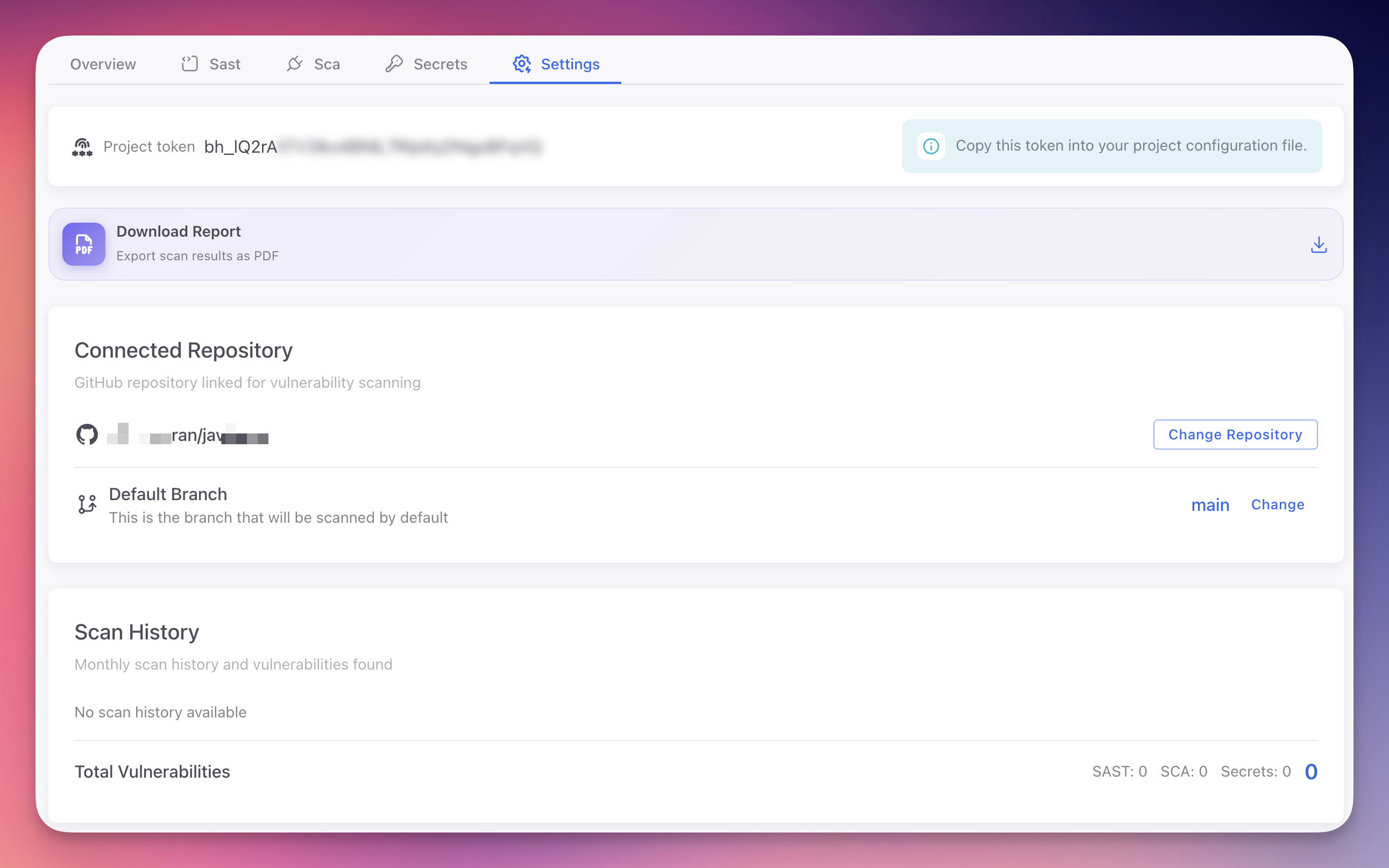
Go to the Settings tab to view and manage the connected repository. Click Change Repository to link a different repo, or Change next to Default Branch to scan a different branch.
 Click to expand
Configure Default Branch
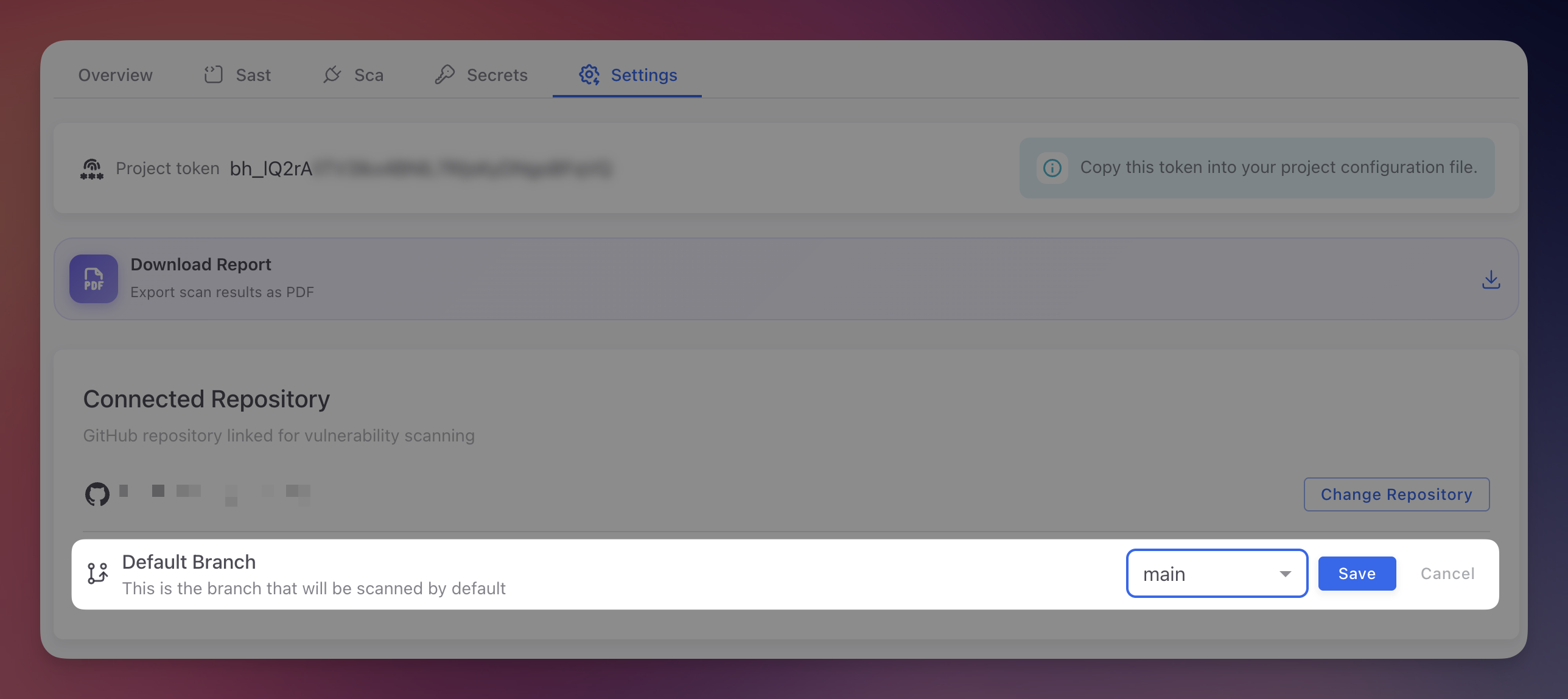
The default branch determines which branch is scanned on push events. Click Change, select the branch from the dropdown, and click Save.
 Click to expand
Manage GitHub Access
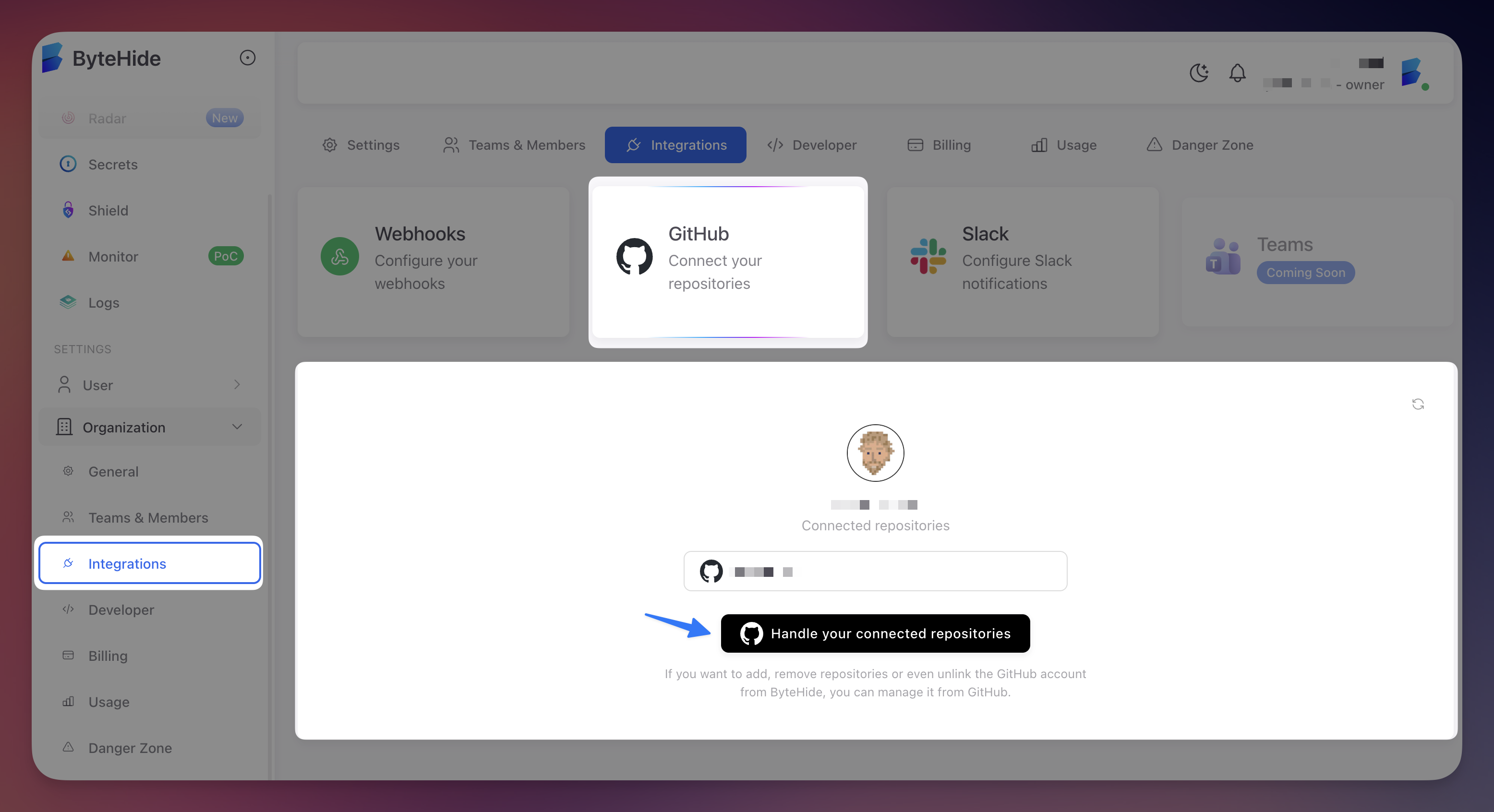
To add, remove, or unlink repositories from your GitHub account, go to Organization > Integrations and click Handle your connected repositories. This opens GitHub's app configuration where you control which repositories ByteHide can access.
 Click to expand
Scan History is Preserved
Changing or unlinking a repository does not delete scan history or findings. All previously detected vulnerabilities are retained in the project.
Next Steps
Dashboard Overview
Navigate the Radar dashboard and interpret scan results.
SAST Overview
How static analysis identifies code vulnerabilities.
SCA Overview
How dependency analysis detects vulnerable packages.
Secrets Overview
How Radar detects hardcoded credentials in your codebase.