On-Premise Firewall
Manage devices that have been blocked due to security policy violations. View block reasons, unblock devices, and understand how devices get added to the blocklist.
On-Premise Projects Only
This page applies to On-Premise, Desktop, Mobile, and IoT project types. For Cloud / Web / API projects, see Cloud Firewall.
Blocked Devices
The Firewall tab for on-premise projects shows a single table listing all devices that have been blocked.
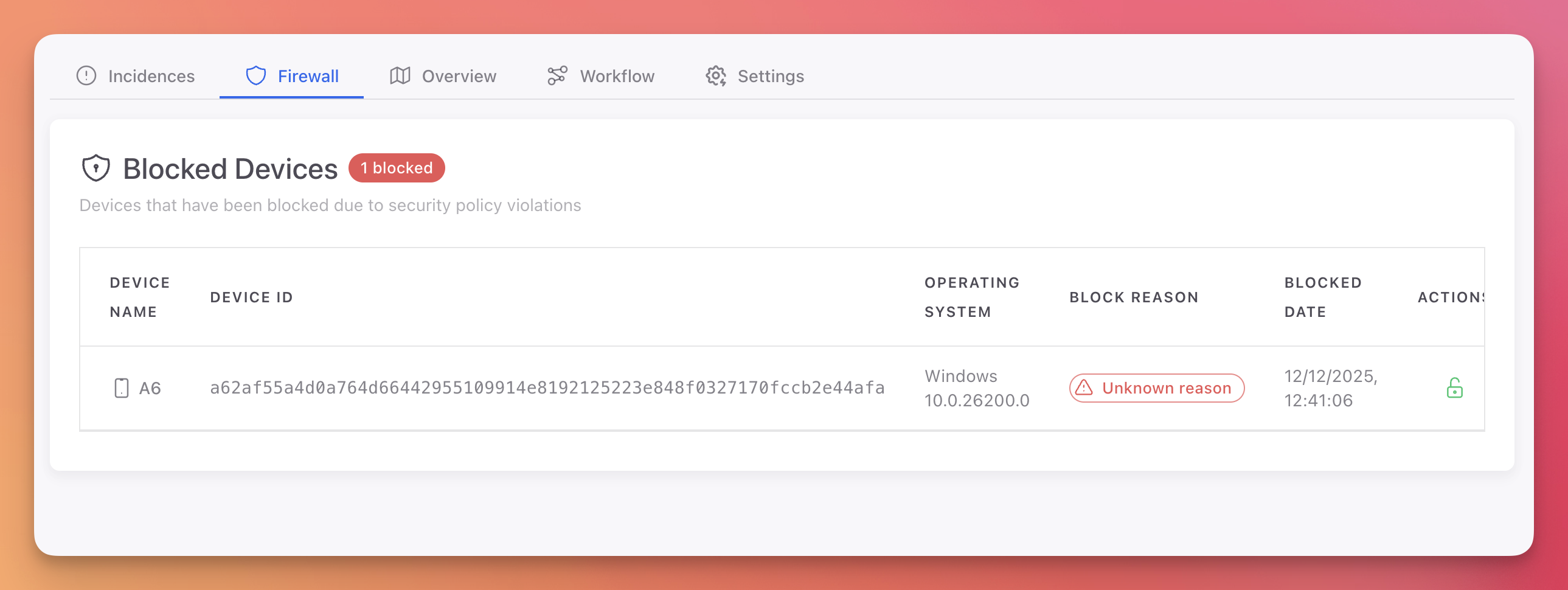 Click to expand
| Column | Description |
|---|---|
| Device Name | Name of the blocked device |
| Device ID | Unique device identifier (full hash) |
| Operating System | OS and version (e.g., Windows 10.0.26200.0) |
| Block Reason | Why the device was blocked (e.g., security policy violation, manual block) |
| Blocked Date | Timestamp of when the block was applied |
| Actions | Unblock button to remove the device from the blocklist |
How Devices Get Blocked
Devices can be blocked in two ways:
Manual Block
From the Device Details page, click Block Device to manually add a device to the firewall blocklist. This is useful when you identify a compromised device through the incident dashboard or session analysis.
Automatic Block
Configure Workflow Rules to automatically block devices when specific threats are detected. For example, you can create a rule that blocks any device where Tampering Detection or Debugger Detection triggers with a Close action.
Unblocking a Device
To unblock a device:
- Find the device in the Blocked Devices table
- Click the unblock button in the Actions column
- The device is immediately removed from the blocklist and can connect again
You can also unblock a device from the Device Details page by clicking Unblock Device.
Device Actions
In addition to blocking and unblocking, you can take other actions on devices from the Device Details page:
| Action | Description |
|---|---|
| Clear Memory | Remotely clear sensitive data from the device's application memory |
| Delete Files | Remotely wipe application files on the device |
| Block Device | Add the device to the firewall blocklist |
| Unblock Device | Remove the device from the firewall blocklist |
See Devices & Sessions for full details on device management.
Next Steps
Devices & Sessions
View device details, security status, and session history
Workflow Rules
Automate device blocking based on detected threats
Cloud Firewall
IP, bot, country, and threat actor blocking for cloud projects