Cloud Configuration
Configure Monitor protections, response actions, logging, and advanced settings from the ByteHide Cloud Dashboard. Changes sync to your application in real-time without redeployment.
Overview
Cloud configuration is the recommended way to manage Monitor. Instead of editing JSON files or writing code, you define protection rules, response actions, and operational settings from the web dashboard. Every change propagates instantly to all running instances of your application.
Configuration Priority
Cloud configuration takes the highest priority. Any configuration applied through the dashboard will override both the protections defined in monitor.config.json and those written directly in code.
Workflow Rules
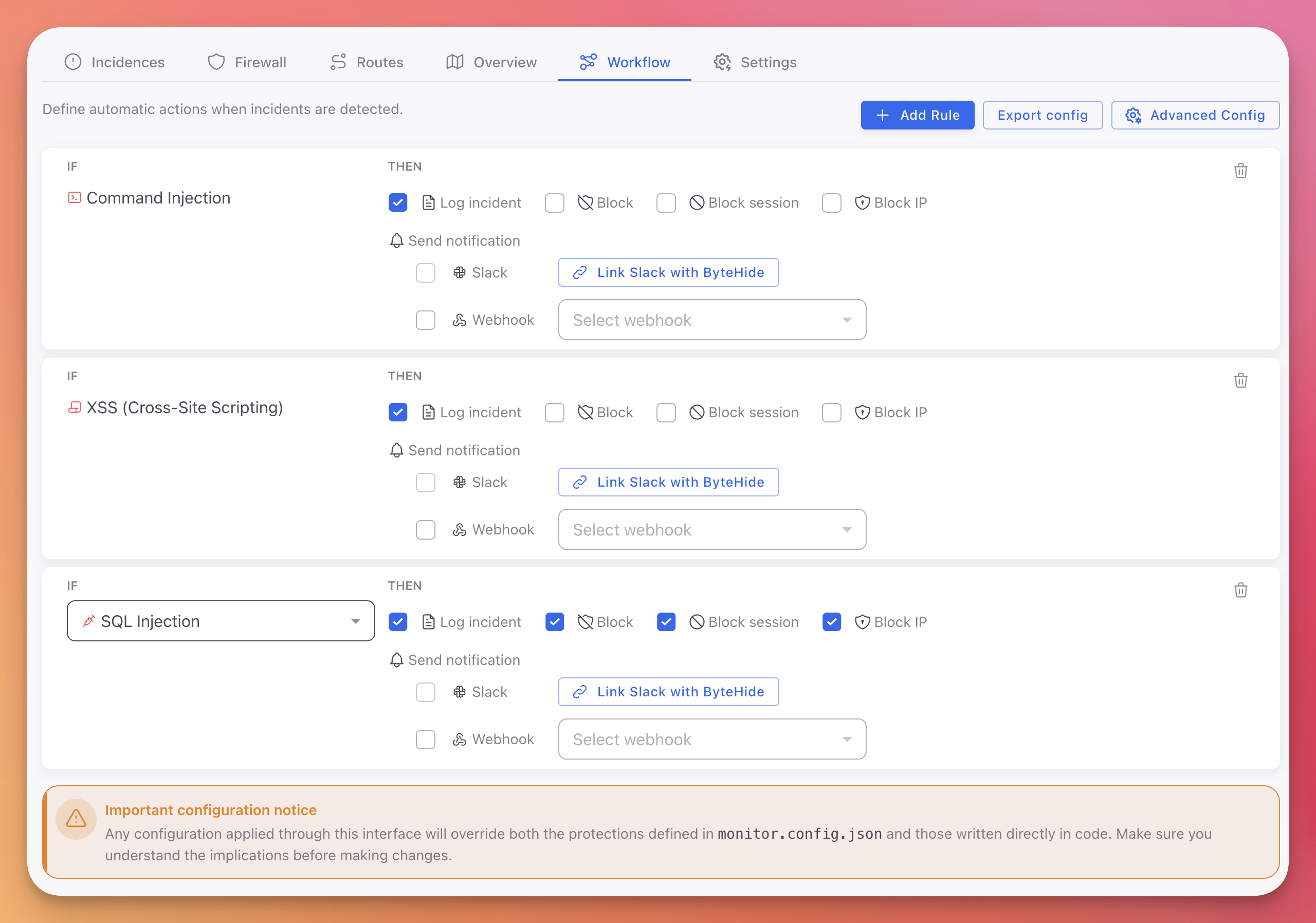
The Workflow tab is where you define how Monitor responds to each type of threat. Rules follow an IF/THEN pattern: if a specific threat type is detected, then execute one or more actions.
 Click to expand
Creating a Rule
- Go to the Workflow tab in your Monitor project
- Click + Add Rule
- Select the protection type (SQL Injection, XSS, Command Injection, etc.)
- Check the actions to execute when this threat is detected:
- Log incident: Record the incident with full forensic context
- Block: Block the specific request or operation
- Block session: Invalidate the attacker's entire session
- Block IP: Block all traffic from the source IP address
Notifications
Each rule can also trigger notifications:
- Slack: Connect your Slack workspace to receive real-time alerts when incidents match the rule
- Webhook: Send incident data to any HTTP endpoint (SIEM, PagerDuty, custom systems)
Exporting Configuration
Click Export config to download your current workflow rules as a JSON file. This is useful for:
- Version-controlling your configuration alongside your application code
- Copying rules between projects
- Using as a base for JSON Configuration in offline environments
Advanced Settings
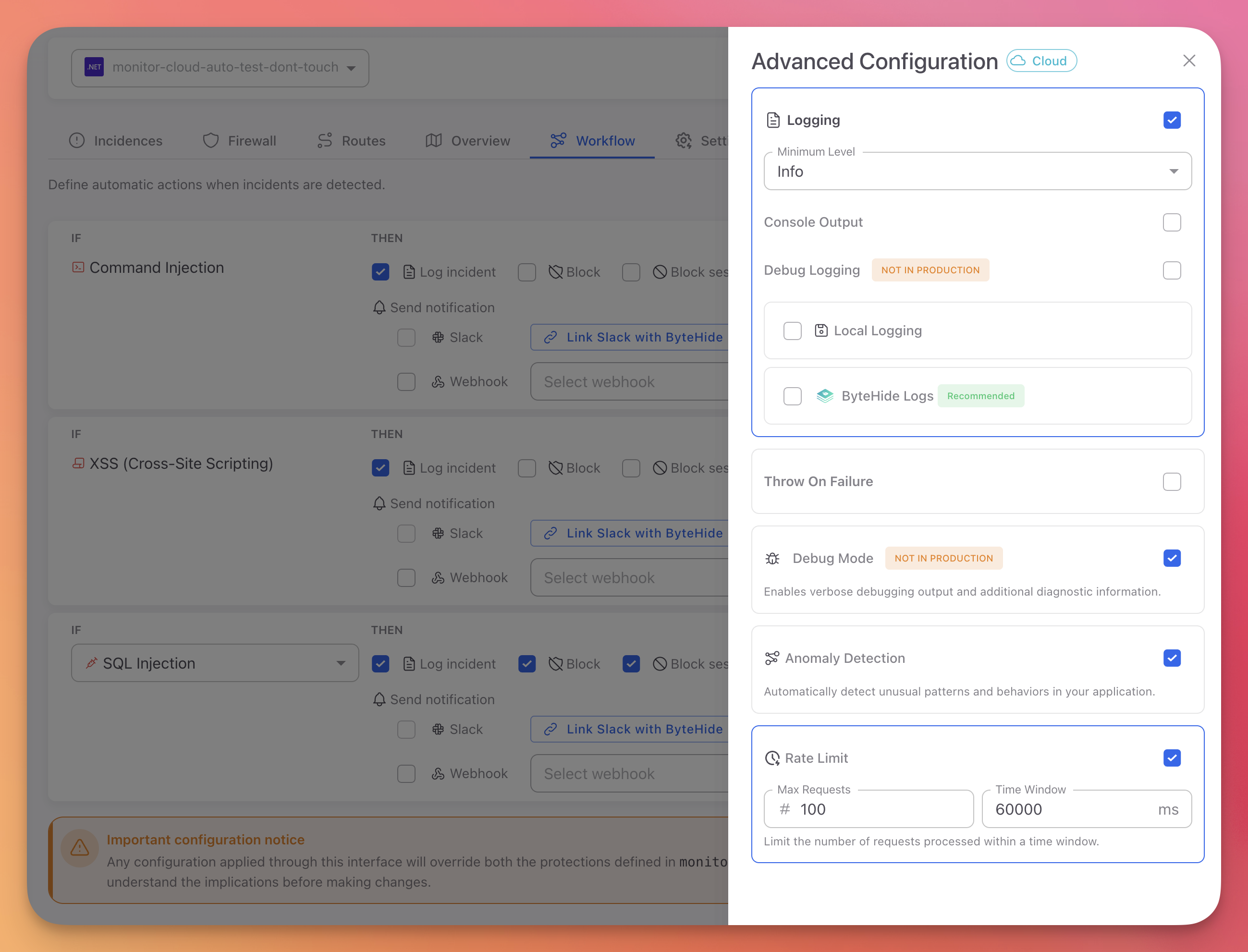
Click Advanced Config in the Workflow tab to open the advanced configuration panel. These settings control Monitor's operational behavior.
 Click to expand
Logging
| Setting | Options | Description |
|---|---|---|
| Logging | On/Off | Enable or disable Monitor logging |
| Minimum Level | Debug, Info, Warning, Error, Critical | Controls which events are recorded. Use Info for production, Debug for troubleshooting |
| Console Output | On/Off | Write log events to standard output |
| Debug Logging | On/Off | Verbose diagnostic output. Not recommended for production |
| Local Logging | On/Off | Write events to a local log file on disk |
| ByteHide Logs | On/Off | Send events to ByteHide Logs for centralized, immutable logging. Recommended |
Anomaly Detection
Toggle to enable or disable Anomaly Detection. When enabled, Monitor automatically learns your application's normal behavior and flags deviations: authentication anomalies, abnormal request rates, unexpected payload structures, and suspicious session activity. Enabled by default.
Rate Limit
Toggle to enable request rate limiting. When enabled, Monitor limits the number of requests processed within a configurable time window, providing protection against brute force and denial of service attempts.
Debug Mode
Enables verbose debugging output and additional diagnostic information. Marked as "Not in production" in the dashboard for a reason: it generates significant overhead and should only be used during development or active troubleshooting.
Throw On Failure
When enabled, Monitor will throw exceptions if it encounters internal errors instead of silently logging them. Useful during development to catch configuration issues early.
Project Settings
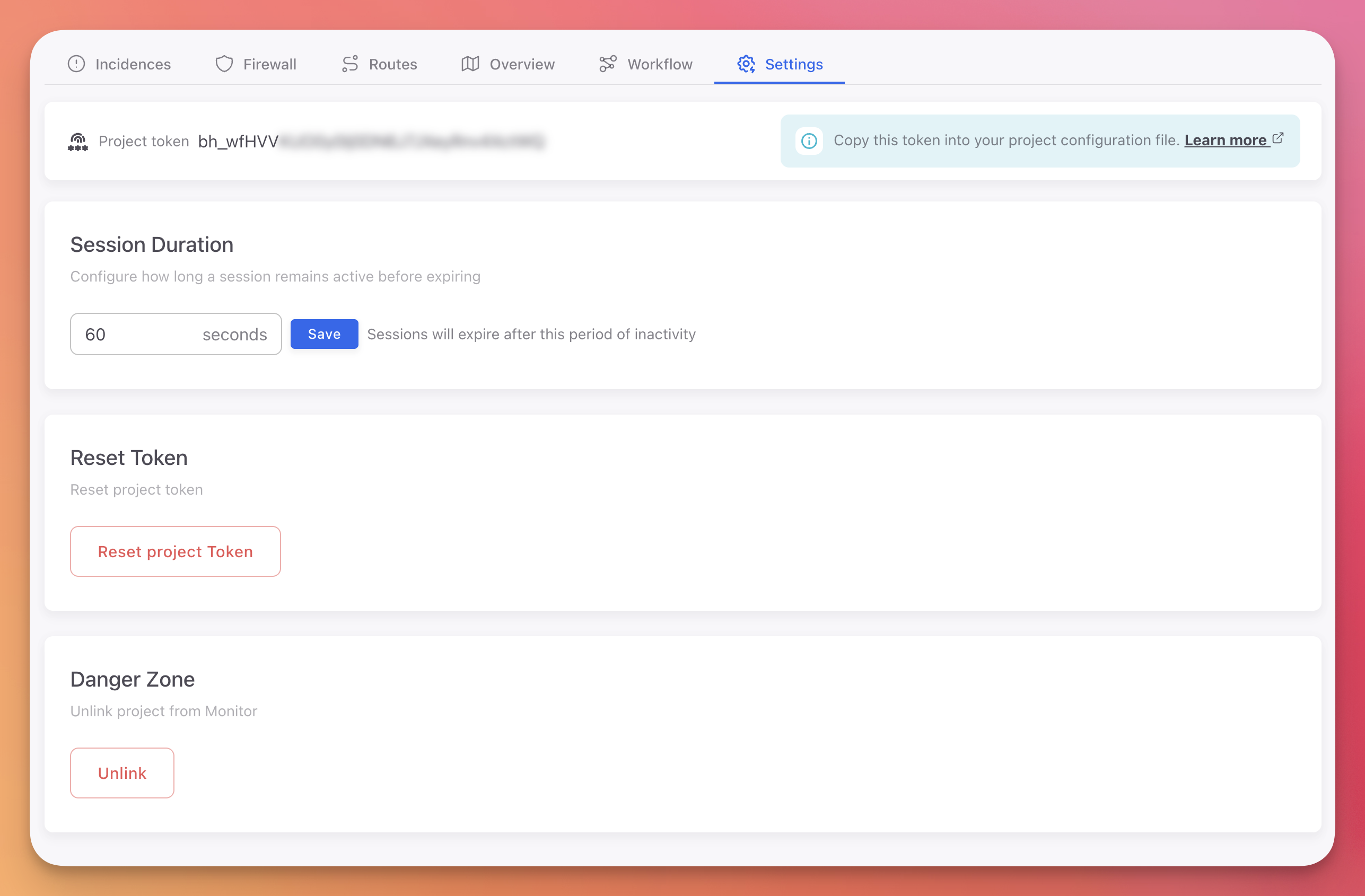
The Settings tab contains project-level configuration.
 Click to expand
Project Token
Your project token (bh_...) authenticates your application with the ByteHide platform. Copy it into your environment variables or configuration file.
# Set as environment variable
export BYTEHIDE_API_TOKEN="bh_your_token_here"
# Set as environment variable
export BYTEHIDE_API_TOKEN="bh_your_token_here"See Create a Monitor Project for details on token management.
Session Duration
Configure how long a session remains active before expiring. Default is 60 seconds of inactivity. Sessions group related requests and incidents from the same device, making it easier to trace attack patterns.
Reset Token
Generates a new project token and invalidates the previous one. Use this if your token has been compromised or leaked. After resetting, update the token in all deployed applications.
Unlink Project
Removes the Monitor integration from this project. This is a destructive action that cannot be undone.
How Configuration Syncs
- You make changes in the Cloud Dashboard (workflow rules, advanced settings, firewall rules)
- Monitor agents running in your applications periodically sync with the ByteHide API
- Updated configuration is applied immediately, without restarting the application
- If the application cannot reach the API (offline, network issues), it continues operating with the last known configuration
This means your security team can update response policies, add firewall rules, or adjust logging levels across every running instance of your application without involving the development team or redeploying.
Configuration Priority
Monitor supports three configuration methods. When multiple are present, they are applied in this priority order:
| Priority | Method | When to Use |
|---|---|---|
| 1 (highest) | Cloud Dashboard | Production. Real-time updates, team collaboration, no code changes |
| 2 | JSON File (monitor.config.json) | Offline environments, air-gapped deployments, version-controlled config |
| 3 (lowest) | Code (Configuration API) | Custom actions, programmatic logic, development-time defaults |
You can combine methods. For example, use the Configuration API to register custom action handlers in code, and use the Cloud Dashboard to assign those handlers to specific protection modules and define escalation rules.
Next Steps
JSON Configuration
Local configuration files for offline environments
Configuration API
Code-based configuration for custom actions and programmatic control
Workflow Rules
Detailed guide on creating and managing workflow rules
Cloud Panel Overview
Full tour of the Monitor dashboard