Configure applications
The content of this article is also available as a video tutorial.
Advanced configuration in Visual Studio (4 min)Enable an app
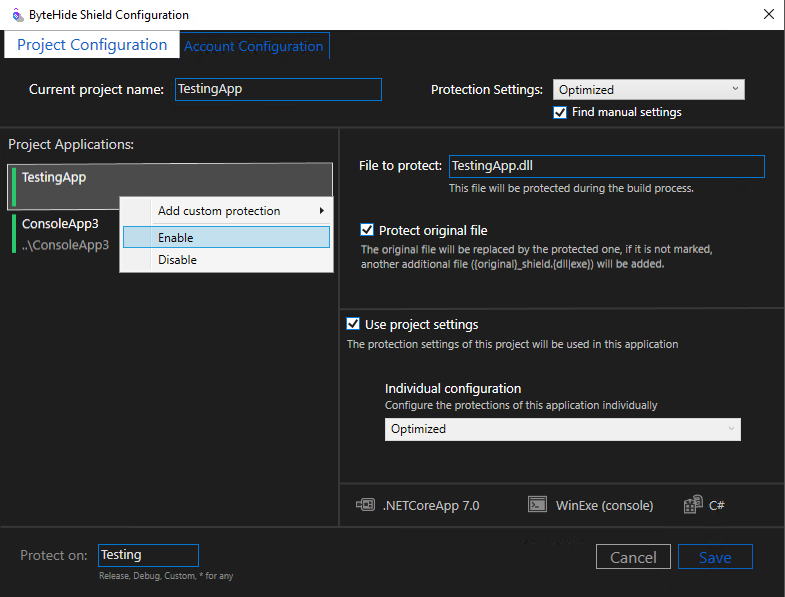
The ByteHide Extension for Visual Studio allows you to enable or disable protections individually for each application in projects that have more than one. You will be able to know if an application is enabled or disabled for protection by the color bar on the side of it.
- Disable an application : To disable the protection for an application you must
right clickin it and selectdisable. - Enable an application : You can enable it again by
right-clickingagain and selectingenable.
If the bar is green the application is enabled. Otherwise the bar will be gray and the application will therefore be disabled.
 Click to expand
Configure protection for an application
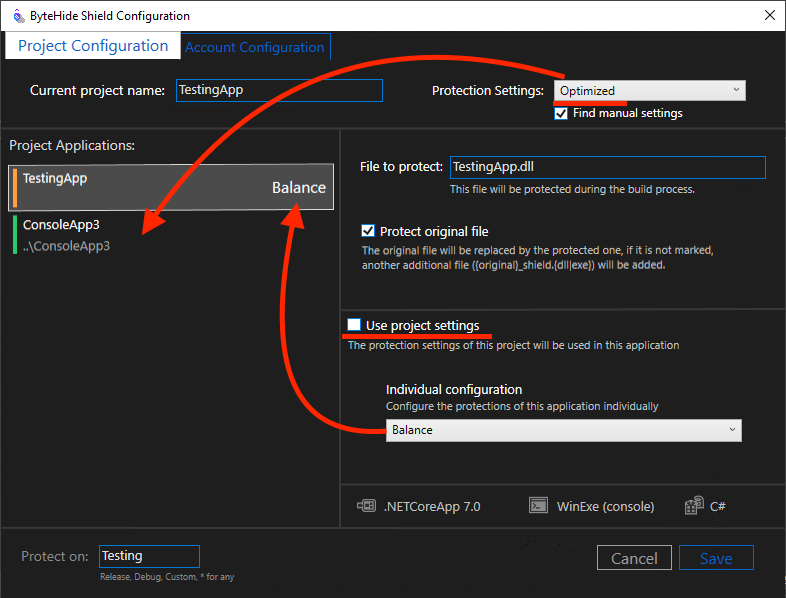
The protection settings selected for the project: Balance, Maximum, Optimization , will be applied in all its applications by default.
If you want a diferent protection for each application, uncheck the Use Project Settings and select Individual Configuration you want to be used in the application.
If you select a Custom Configuration for an application, it will appear with an orange bar on its side. The name of the applied protection will also appear next to its name.
 Click to expand
If you want an application to use its own configuration file, we will follow the same procedure as in projects. Add the configuration file corresponding to each application and select the Find manual settings check. This enables individualized customization of application protection with the ByteHide Extension for Visual Studio.
Replace original files
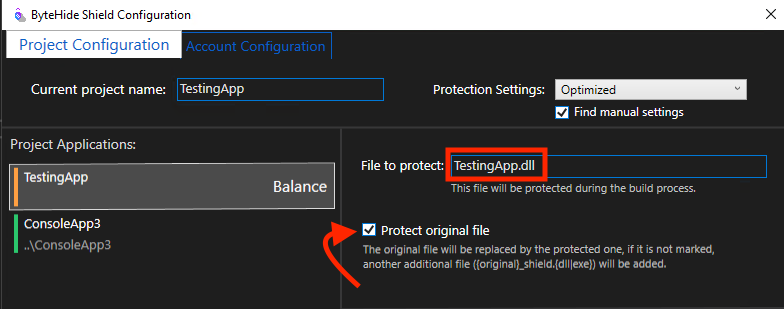
The protected file can replace the original or a new file can be generated. By default the file will be overwritten, if we want a new one to be generated we must uncheck the Protect original file.
 Click to expand
The file that is created if we don't replace the original will be called: {original}_shield.{exe | dll}