iOS Installation - Swift Package Manager
Install ByteHide Monitor in your iOS project using Swift Package Manager. SPM requires a one-time setup step to configure the build script.
Requirements
- Xcode 14 or later
- iOS Deployment Target: 12.0+
- Languages: Swift 5.5+ or Objective-C
- Swift Package Manager (built into Xcode)
Step 1: Add the Package
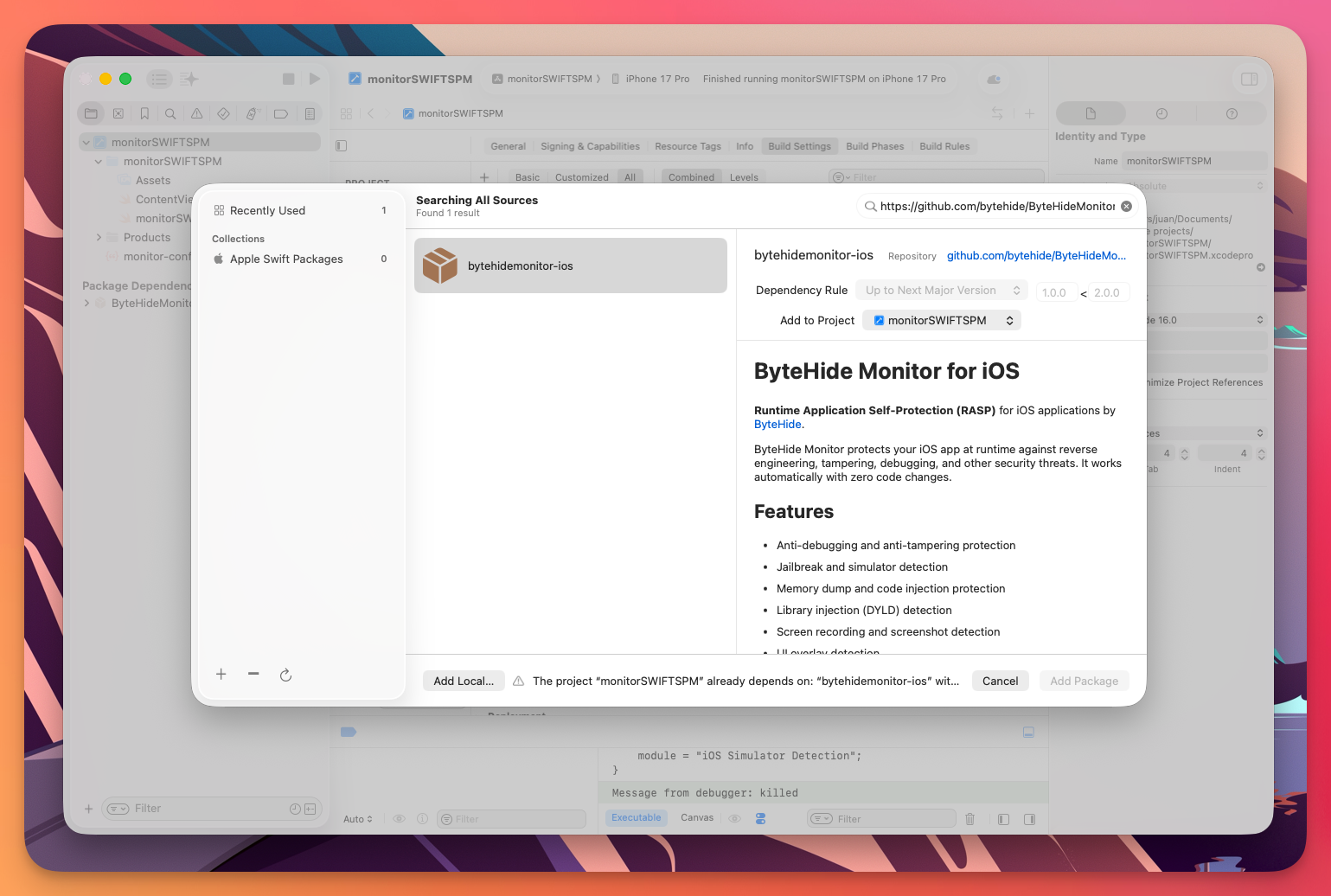
- Open your project in Xcode
- Go to File > Add Package Dependencies...
- In the search bar, paste the repository URL:
https://github.com/bytehide/ByteHideMonitor-iOS - Select Up to Next Major Version and click Add Package
- Make sure your app target is selected, then click Add Package
 Click to expand
Step 2: Run Setup Script (One Time Only)
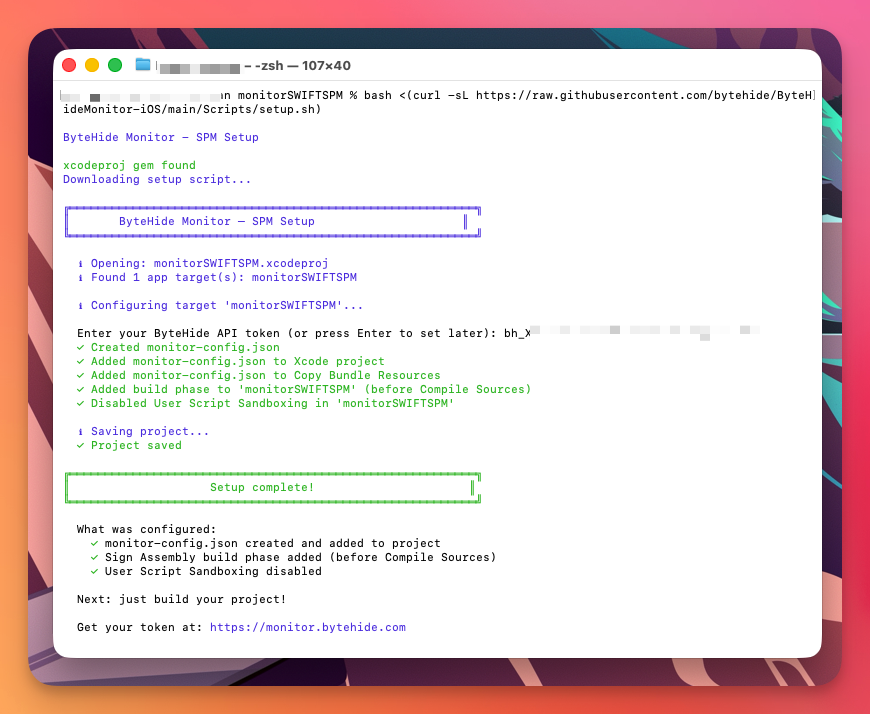
Open Terminal, navigate to your Xcode project directory (where the .xcodeproj is), and run:
bash <(curl -sL https://raw.githubusercontent.com/bytehide/ByteHideMonitor-iOS/main/Scripts/setup.sh)bash <(curl -sL https://raw.githubusercontent.com/bytehide/ByteHideMonitor-iOS/main/Scripts/setup.sh)This script automatically:
- Creates
monitor-config.jsonand asks for your API token - Adds it to the Xcode project and Copy Bundle Resources
- Adds the Sign Assembly build phase (before Compile Sources)
- Disables User Script Sandboxing (required for the signing request)
 Click to expand
After this one-time setup, builds work automatically.
Step 3: Verify the Setup
After running the script, open your project in Xcode and verify these three things:
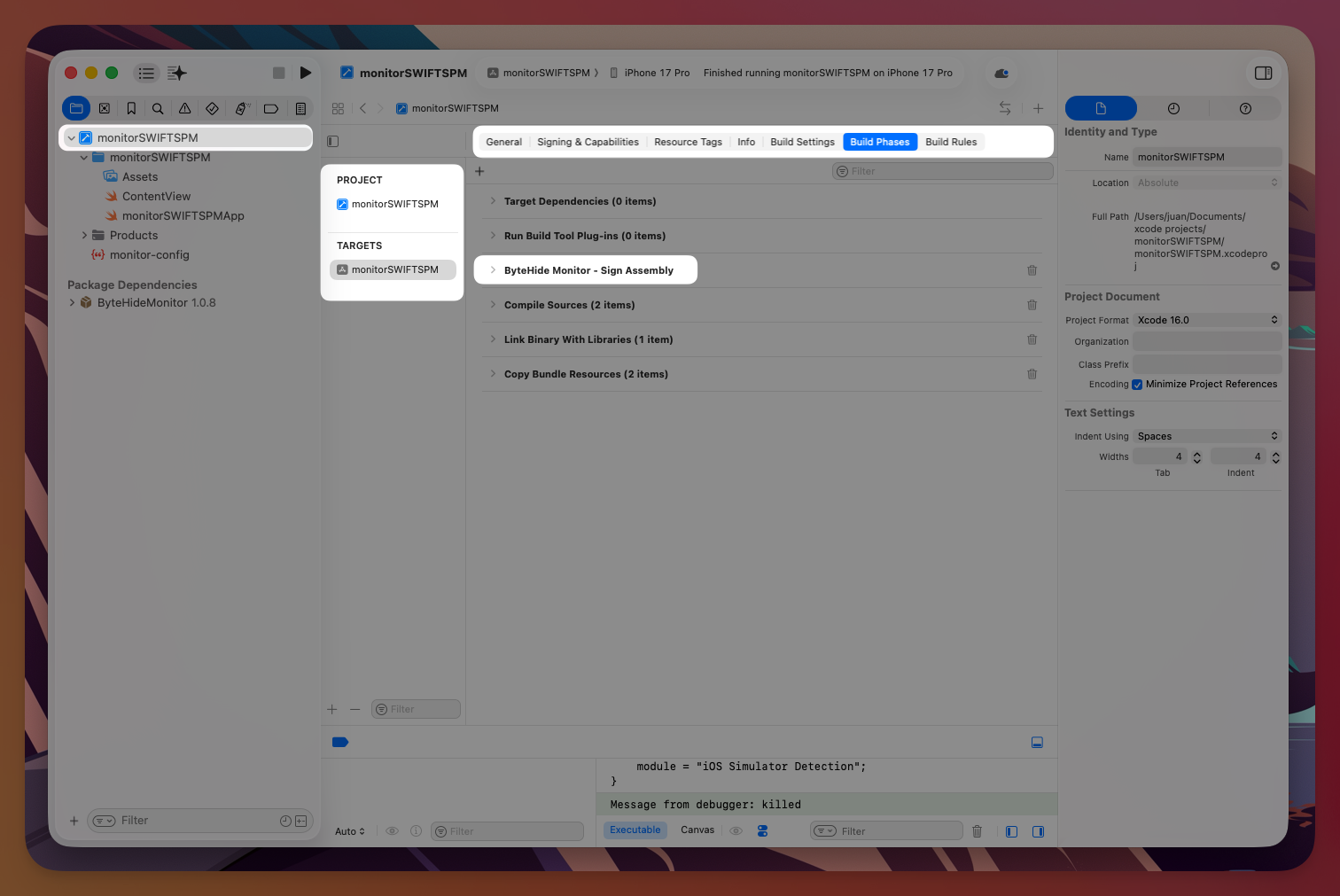
3.1 Build Phase exists
Go to your app target > Build Phases. You should see "ByteHide Monitor - Sign Assembly" listed before Compile Sources:
Target Dependencies
Run Build Tool Plug-ins
ByteHide Monitor - Sign Assembly    ← here
Compile Sources
Link Binary With Libraries
Copy Bundle Resources
Target Dependencies
Run Build Tool Plug-ins
ByteHide Monitor - Sign Assembly ← here
Compile Sources
Link Binary With Libraries
Copy Bundle ResourcesIf it's not there or in the wrong position, drag it above Compile Sources.
 Click to expand
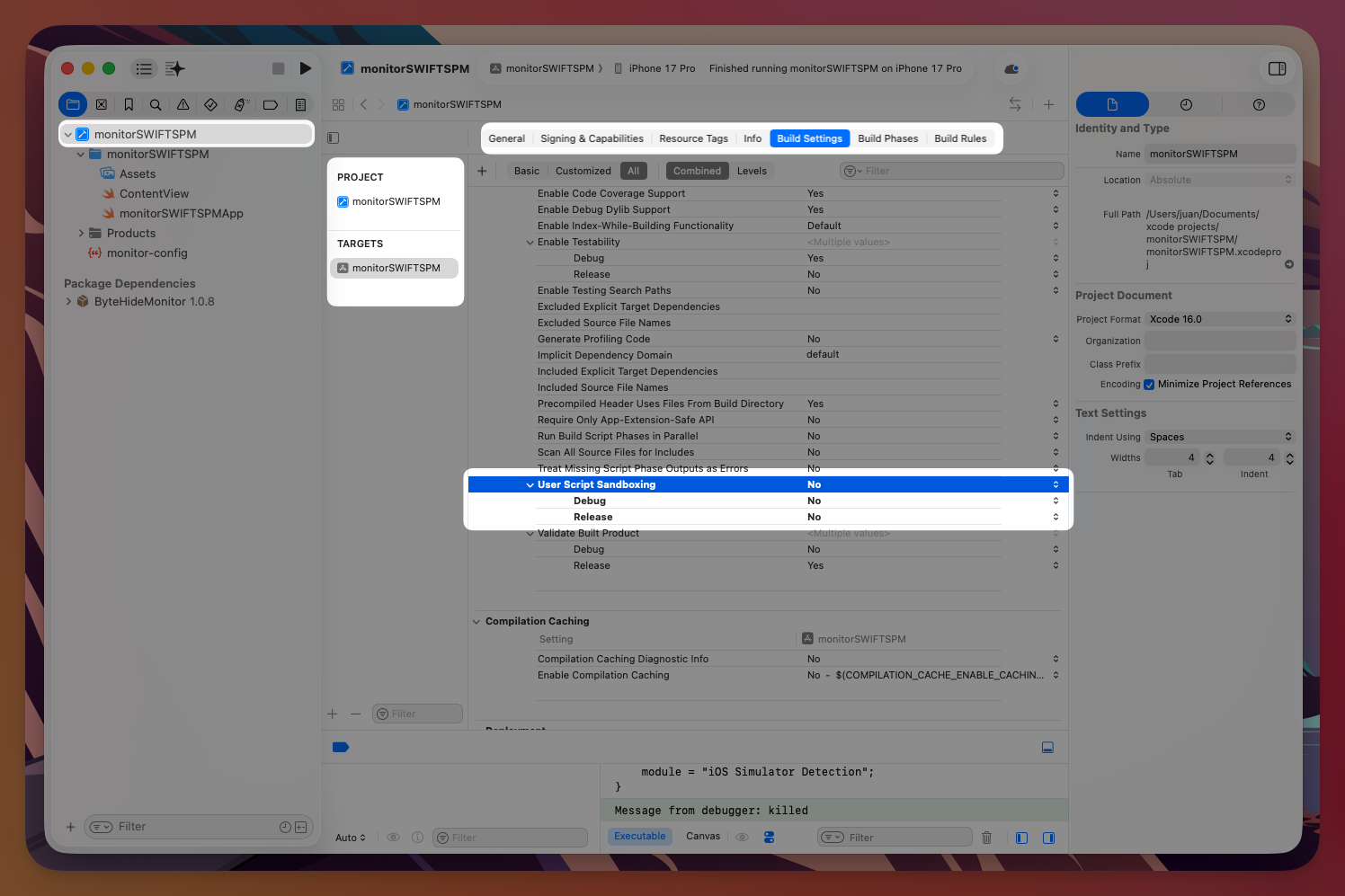
3.2 User Script Sandboxing is disabled
Go to your app target > Build Settings and search for User Script Sandboxing. It must be set to No.
If it's still Yes, change it to No manually. The signing script needs network access to validate your license.
 Click to expand
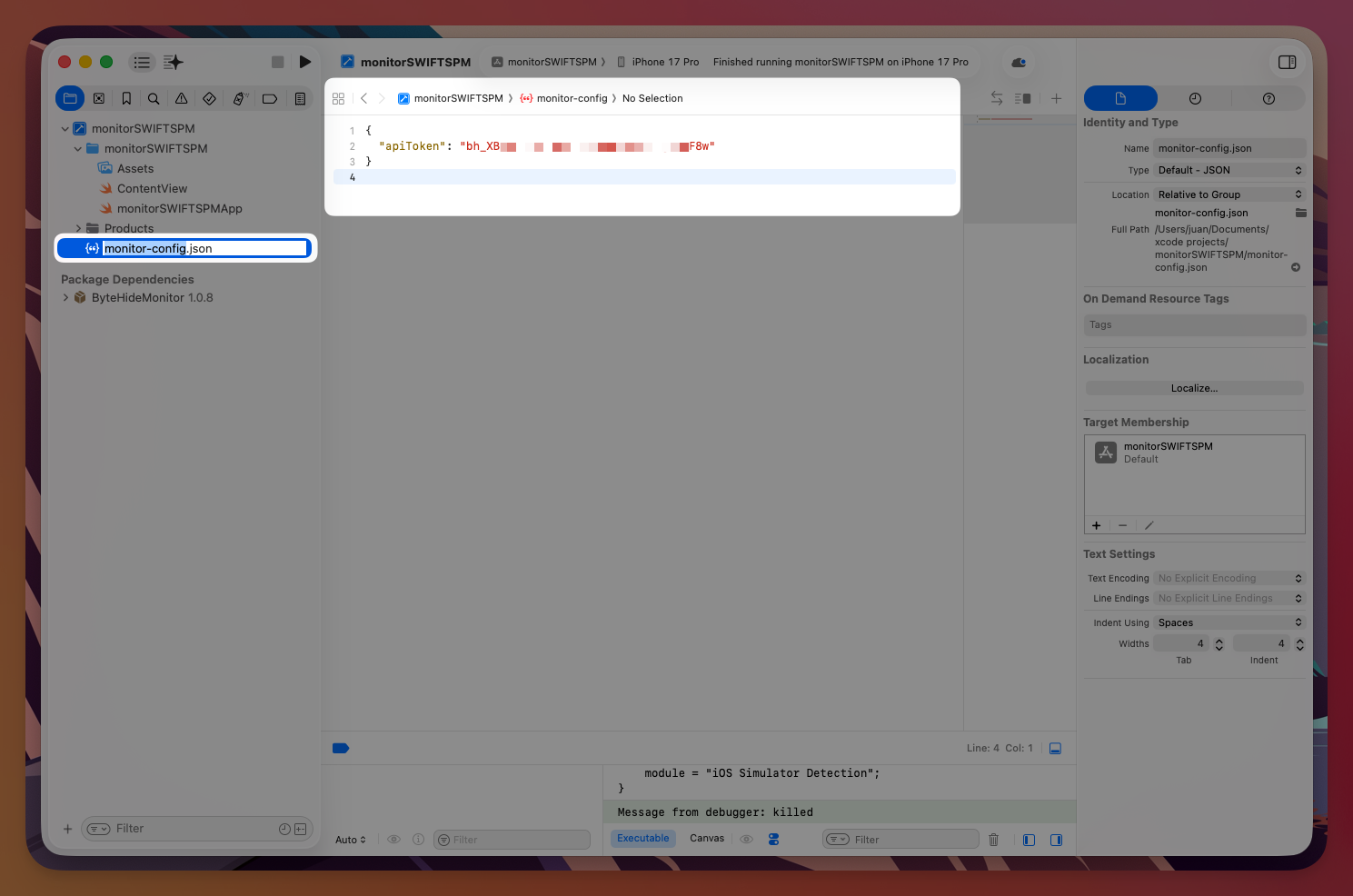
3.3 API token is configured
Check that monitor-config.json exists in your project root with your token:
{
  "apiToken": "bh_your_project_key"
}
{
"apiToken": "bh_your_project_key"
}Also verify it appears in Copy Bundle Resources (app target > Build Phases > Copy Bundle Resources). The file must be included in the app bundle for runtime configuration.
 Click to expand
Alternative token methods
Instead of monitor-config.json, you can also set the token via Info.plist (ByteHideMonitor > APIToken) or environment variable (BYTEHIDE_TOKEN). See Configuration API for all options and priority order.
Get your project key at cloud.bytehide.com.
Step 4: Build and Run
Build your project. You should see in the build log:
ByteHide Monitor: Assembly signed successfullyByteHide Monitor: Assembly signed successfully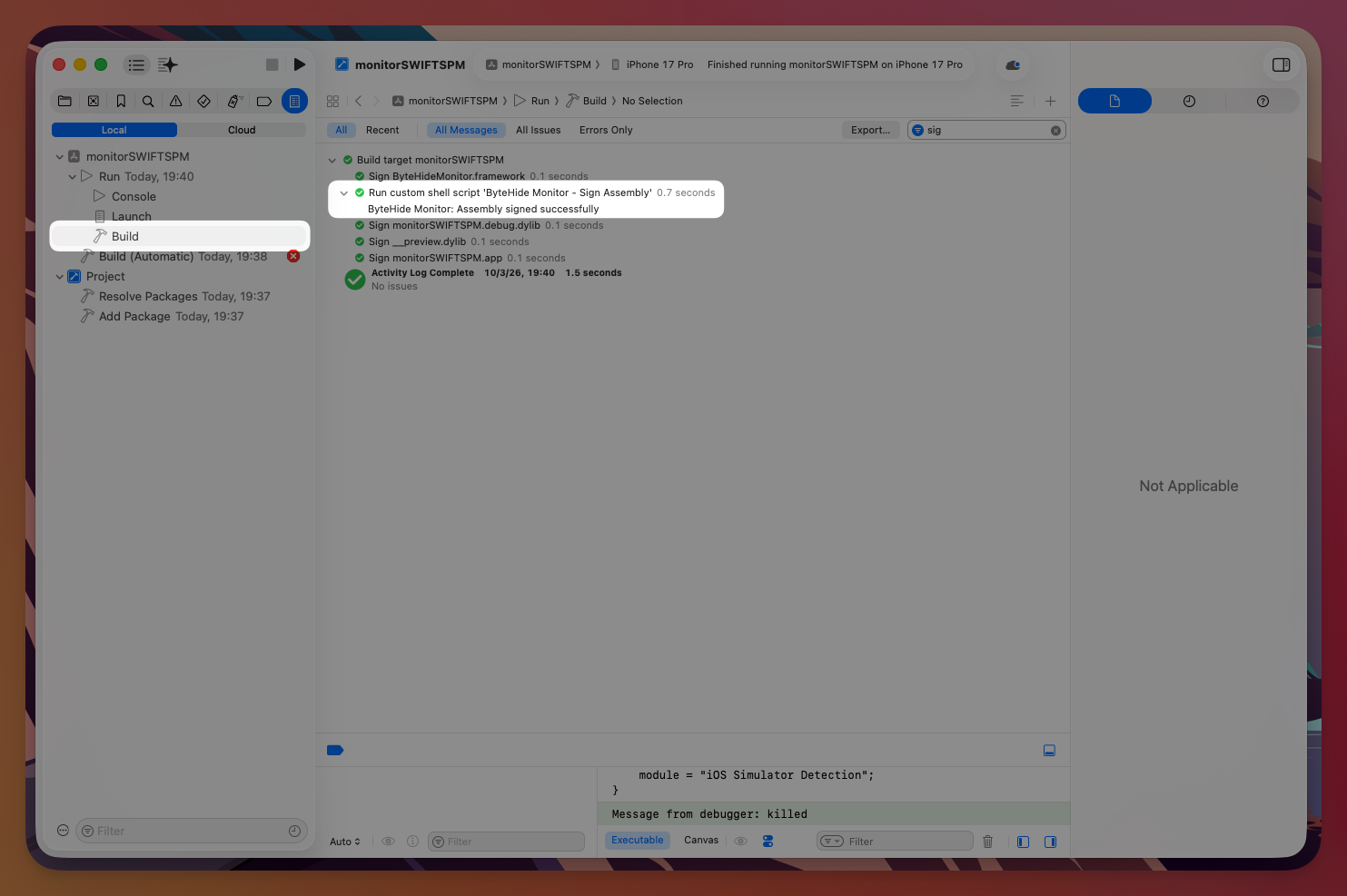 Click to expand
And in the runtime console:
[ByteHideMonitor] Initializing...
[ByteHideMonitor] Validating signature
[ByteHideMonitor] Signature validated successfully
[ByteHideMonitor] Configuring...
[ByteHideMonitor] Initializing...
[ByteHideMonitor] Validating signature
[ByteHideMonitor] Signature validated successfully
[ByteHideMonitor] Configuring...That's it. ByteHide Monitor is now protecting your app.
Updating
In Xcode: File > Packages > Update to Latest Package Versions.
Troubleshooting
"No monitor.sig found": The signing script didn't run or wrote to the wrong location. Check that the build phase ByteHide Monitor - Sign Assembly exists, User Script Sandboxing is set to No, and you have a valid token in monitor-config.json.
"sign-assembly.sh not found": The SPM package hasn't been resolved yet. In Xcode: File > Packages > Resolve Package Versions, then build again.
"No project key found for assembly signing": Make sure monitor-config.json is in the project root (same directory as .xcodeproj) with a valid apiToken value. Alternatively, set the BYTEHIDE_TOKEN environment variable.
Build error about sandboxing: Set User Script Sandboxing to No in Build Settings. The signing script needs to make an HTTPS request to validate your license.