Settings
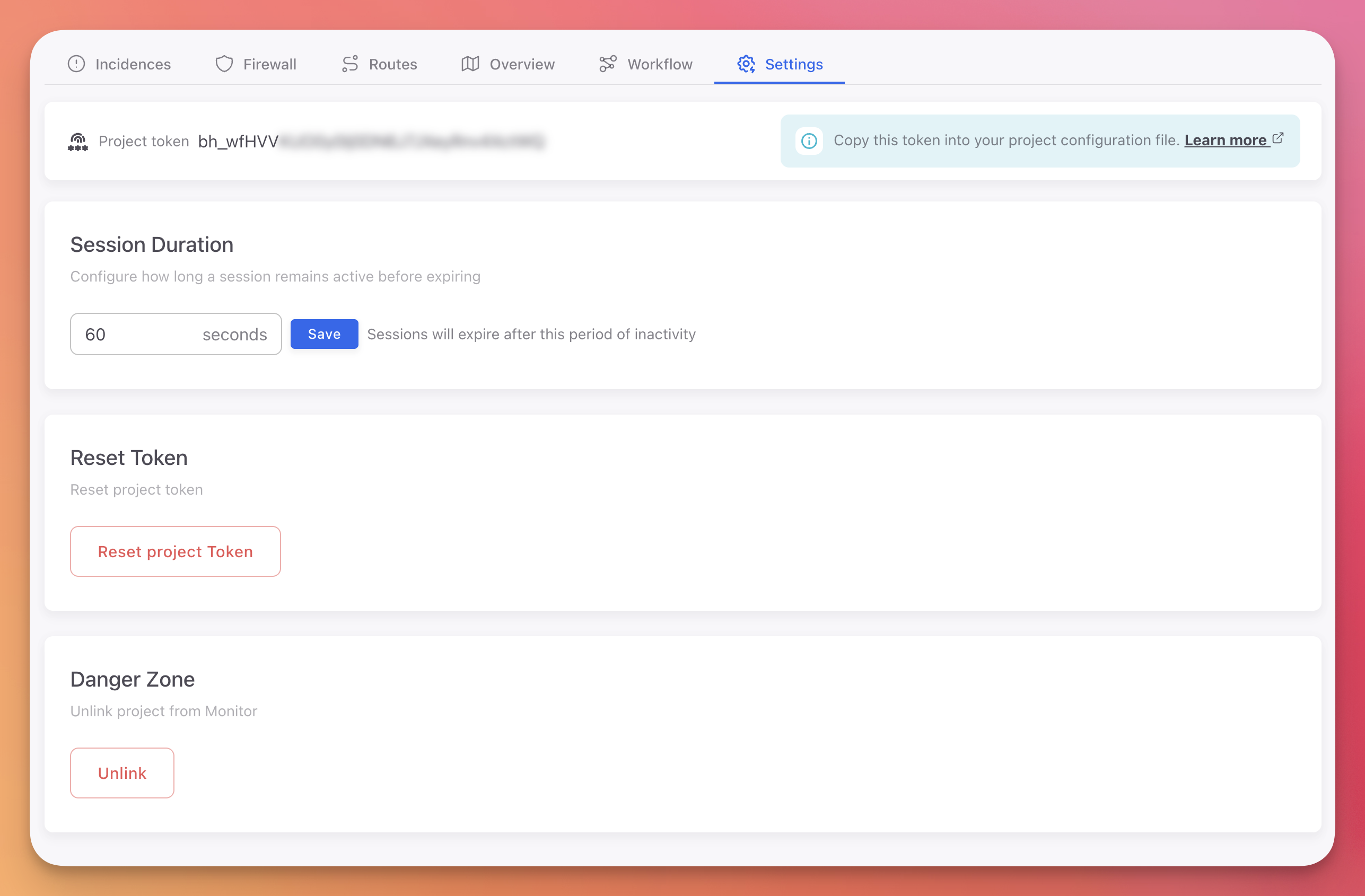
Manage your project token, session configuration, and administrative operations from the Settings tab.
Settings Tab
 Click to expand
Project Token
Your project token (bh_...) authenticates your application with the ByteHide platform. Copy it and set it as an environment variable:
export BYTEHIDE_API_TOKEN="bh_your_token_here"export BYTEHIDE_API_TOKEN="bh_your_token_here"Token Security
Never commit tokens to source control. Use environment variables or a secret manager. See Best Practices for recommendations.
The token is displayed partially masked in the dashboard. Click the copy button to copy the full token to your clipboard.
Session Duration
Configure how long a session remains active before expiring due to inactivity. The default is 60 seconds.
Sessions group related requests and incidents from the same device or client. A longer session duration means more events are grouped together, making it easier to trace attack patterns across multiple requests.
Enter the desired duration in seconds and click Save.
Reset Token
Generates a new project token and immediately invalidates the previous one. Use this if your token has been compromised or leaked.
Immediate Impact
Resetting the token immediately invalidates the old one. All running applications using the old token will lose connectivity with the ByteHide platform until they are updated with the new token.
After resetting:
- Copy the new token from the Settings tab
- Update the environment variable or configuration file in all deployments
- Restart or redeploy your applications
- Verify that devices reappear in the Overview tab
Danger Zone
Unlink Project
Permanently removes the Monitor integration from this project and deletes all associated data:
- All devices and device history
- All sessions
- All incidents and forensic data
- All Workflow rules and firewall configurations
- The project token (invalidated)
Permanent Data Loss
This action cannot be undone. All data will be permanently deleted. Export your configuration and back up any incident data before unlinking.
Next Steps
Creating a Project
Set up a new Monitor project
Workflow Rules
Configure automatic responses to detected threats
Devices & Sessions
View devices and verify connectivity after token changes