Filtering & Search
ByteHide provides powerful filtering and search capabilities to help you quickly find specific logs and identify patterns in your application data.
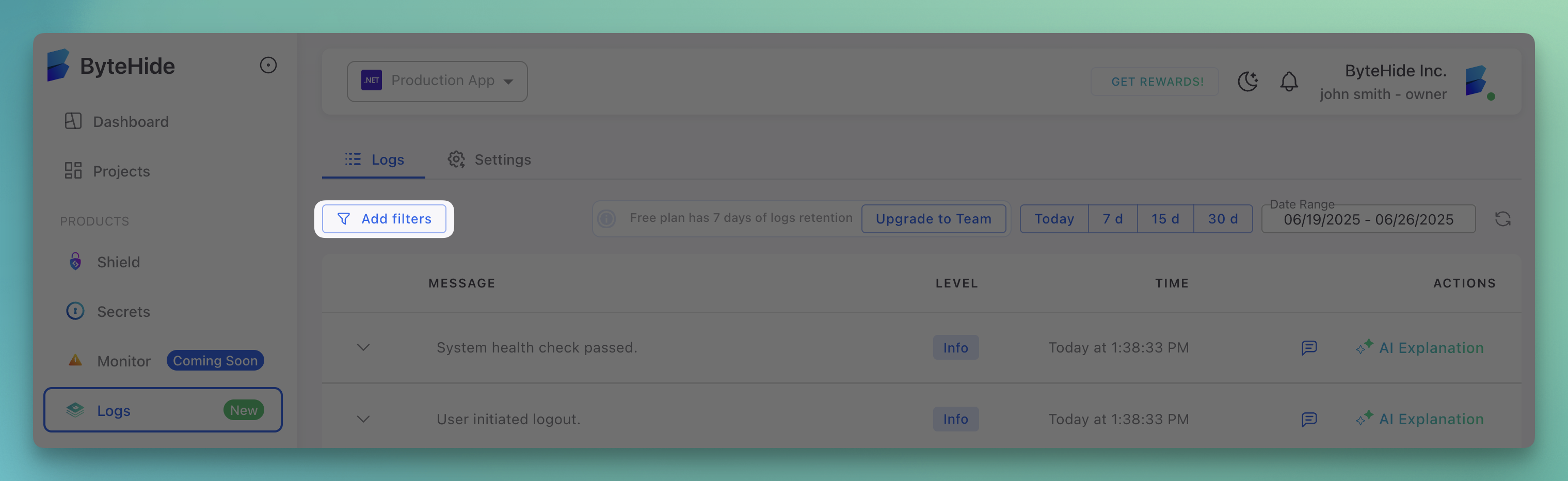
Add Filters
Use the "Add filters" button to create custom filters for your log search.
 Click to expand
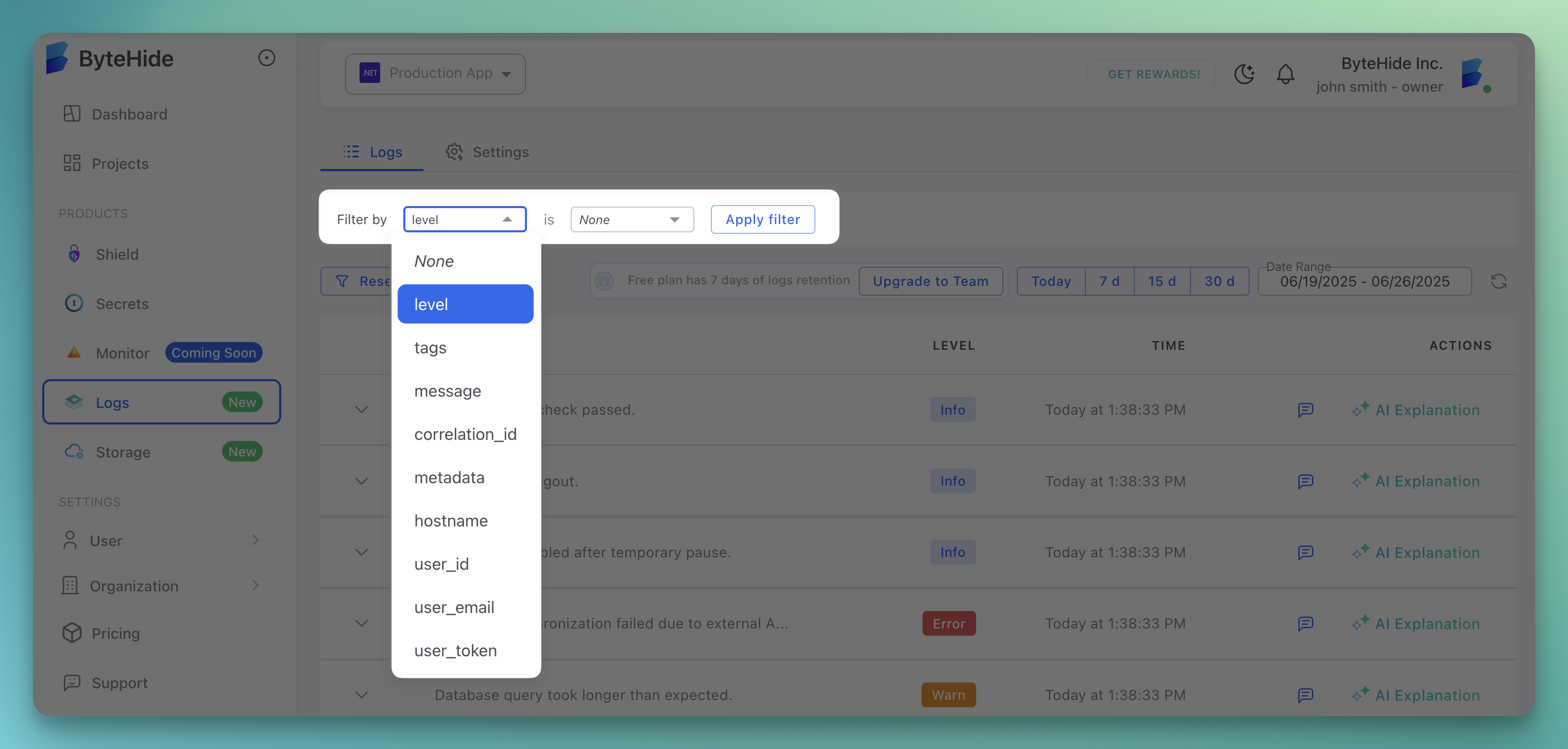
Available Filter Types
The filter dropdown provides multiple options:
- level: Filter by log level (Info, Warn, Error, Critical)
- tags: Filter by log tags
- message: Search within log messages
- correlation_id: Find logs by correlation ID
- metadata: Filter by metadata fields
- hostname: Filter by source hostname
- user_id: Filter by authenticated user ID
- user_email: Filter by user email
- user_token: Filter by user authentication token
 Click to expand
Filter Operations
Each filter supports different operations:
Text Filters
- contains: Search for text within the field
- equals: Exact match
- starts with: Begins with specified text
- ends with: Ends with specified text
Level Filters
- is: Exact level match (critical, error, warn, info)
- is not: Exclude specific levels
Example Filters
Common filter combinations:
Level is critical
Tags contains payment
Message contains timeout
Level is critical
Tags contains payment
Message contains timeout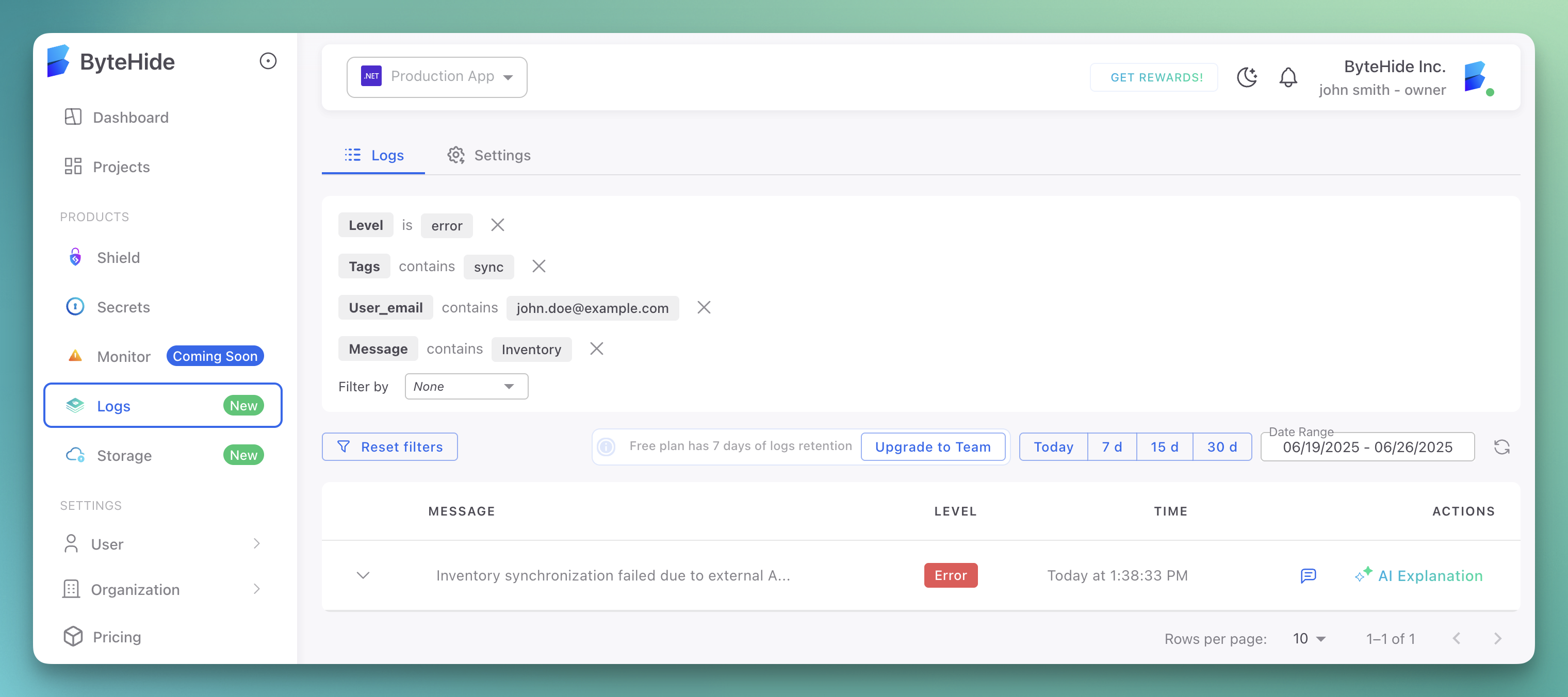 Click to expand
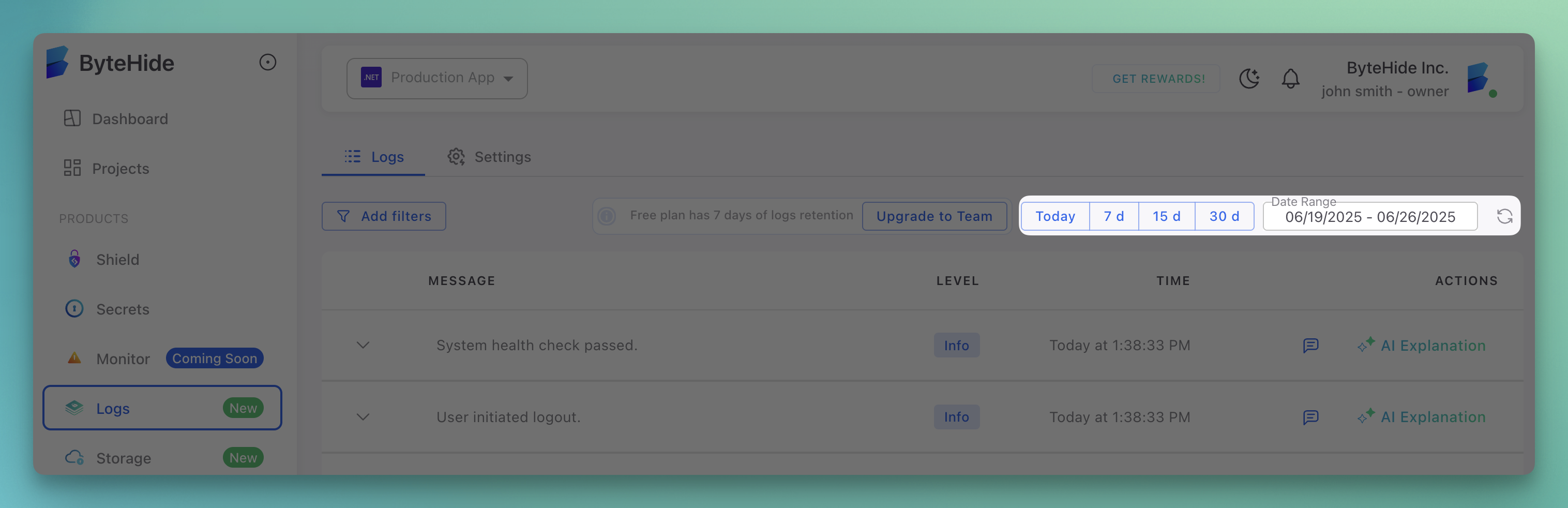
Date Range Selection
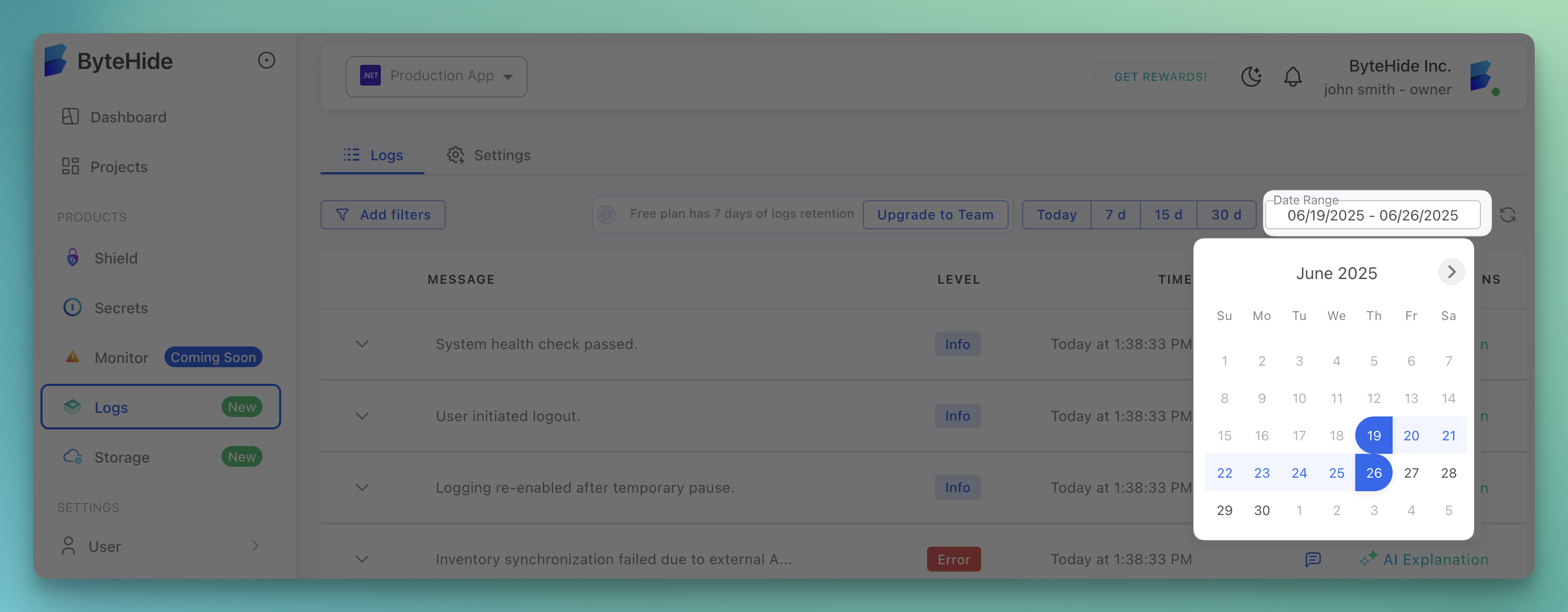
Control the time range of logs to display using the date picker.
 Click to expand
Quick Date Options
Pre-defined time ranges:
- Today: Current day logs
- 7 d: Last 7 days
- 15 d: Last 15 days
- 30 d: Last 30 days
Custom Date Range
Select specific start and end dates using the calendar picker:
- Click on the date range field
- Navigate through months using arrow controls
- Select start and end dates
- Apply the custom range
 Click to expand
Active Filters Display
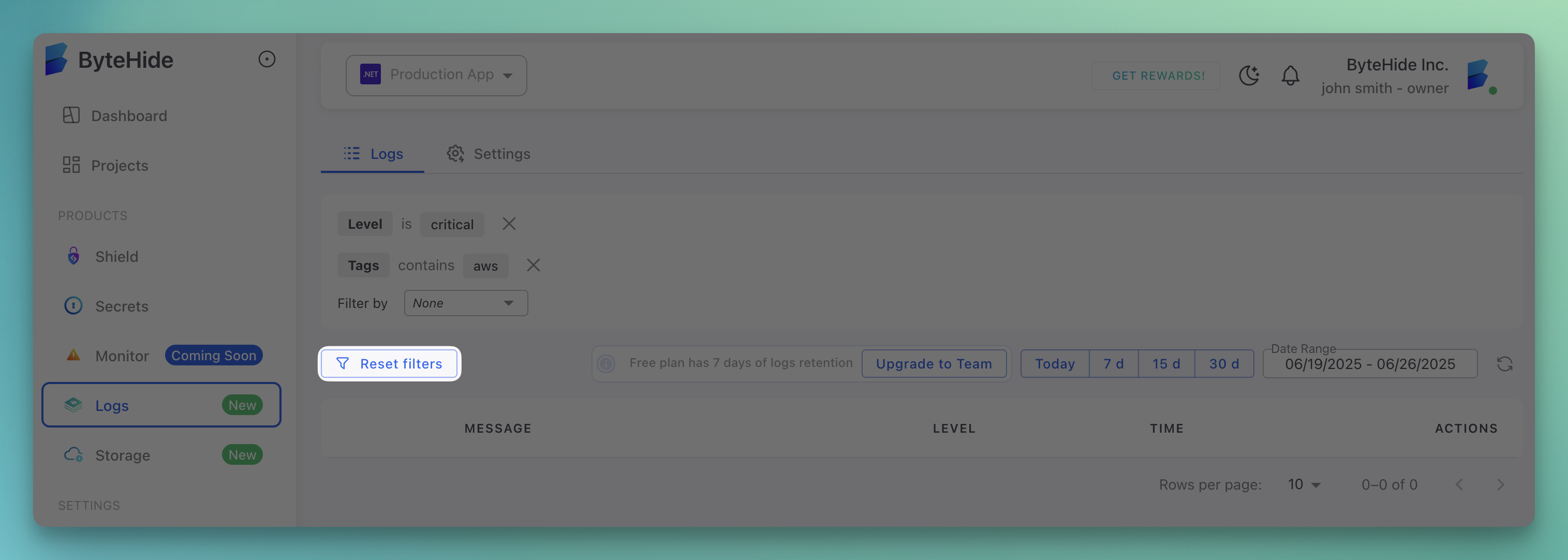
Active filters are shown as removable chips above the log list:
- Level is critical: Shows level-based filtering
- Tags contains database: Shows tag-based filtering
- Message contains connection: Shows message content filtering
Each filter chip includes an "X" button to remove individual filters.
Reset Filters
Use the "Reset" button to clear all active filters and return to the unfiltered log view.
 Click to expand
Filter Combinations
Combine multiple filters for precise log discovery:
Error Investigation:
CODELevel is error Tags contains payment Date range: Last 7 daysLevel is error Tags contains payment Date range: Last 7 daysUser Activity Tracking:
CODEUser_email contains user@company.com Message contains authenticationUser_email contains user@company.com Message contains authenticationPerformance Monitoring:
CODETags contains performance Level is warnTags contains performance Level is warn
Search Tips
- Use specific terms: More specific searches return better results
- Combine filters: Use multiple criteria to narrow results
- Check spelling: Ensure filter values match log content exactly
- Use correlation IDs: Track related logs across requests
- Filter by time: Narrow down to specific time periods
Real-time Filtering
Filters apply in real-time as you type, immediately updating the log display to show matching entries.
Filter Persistence
- Filters remain active while navigating the dashboard
- Date ranges persist across page refreshes
- Filter state is maintained during session
Performance
The filtering system is optimized for:
- Fast response: Results appear instantly
- Large datasets: Efficiently handles thousands of logs
- Complex queries: Multiple simultaneous filters
- Real-time updates: New logs automatically match active filters
Next Steps
- AI Assistant - Get AI-powered analysis of filtered logs
- Log Visualization - View detailed log information
- Comments & Collaboration - Share filtered views with team members