Workflow
Define automatic actions when threats are detected. Create IF/THEN rules that respond to each type of threat with logging, blocking, notifications, or custom workflows. Changes apply in real-time.
Configuration Priority
Workflow rules configured in the Cloud Panel override both monitor.config.json and code-based configuration. See Configuration Priority for details.
Workflow Rules
The Workflow tab lists all active automation rules for your project, with three buttons in the top right:
- + Add Rule: Create a new automation rule
- Export config: Download all rules as a JSON file
- Advanced Config: Open the advanced configuration panel
Cloud / Web / API projects:
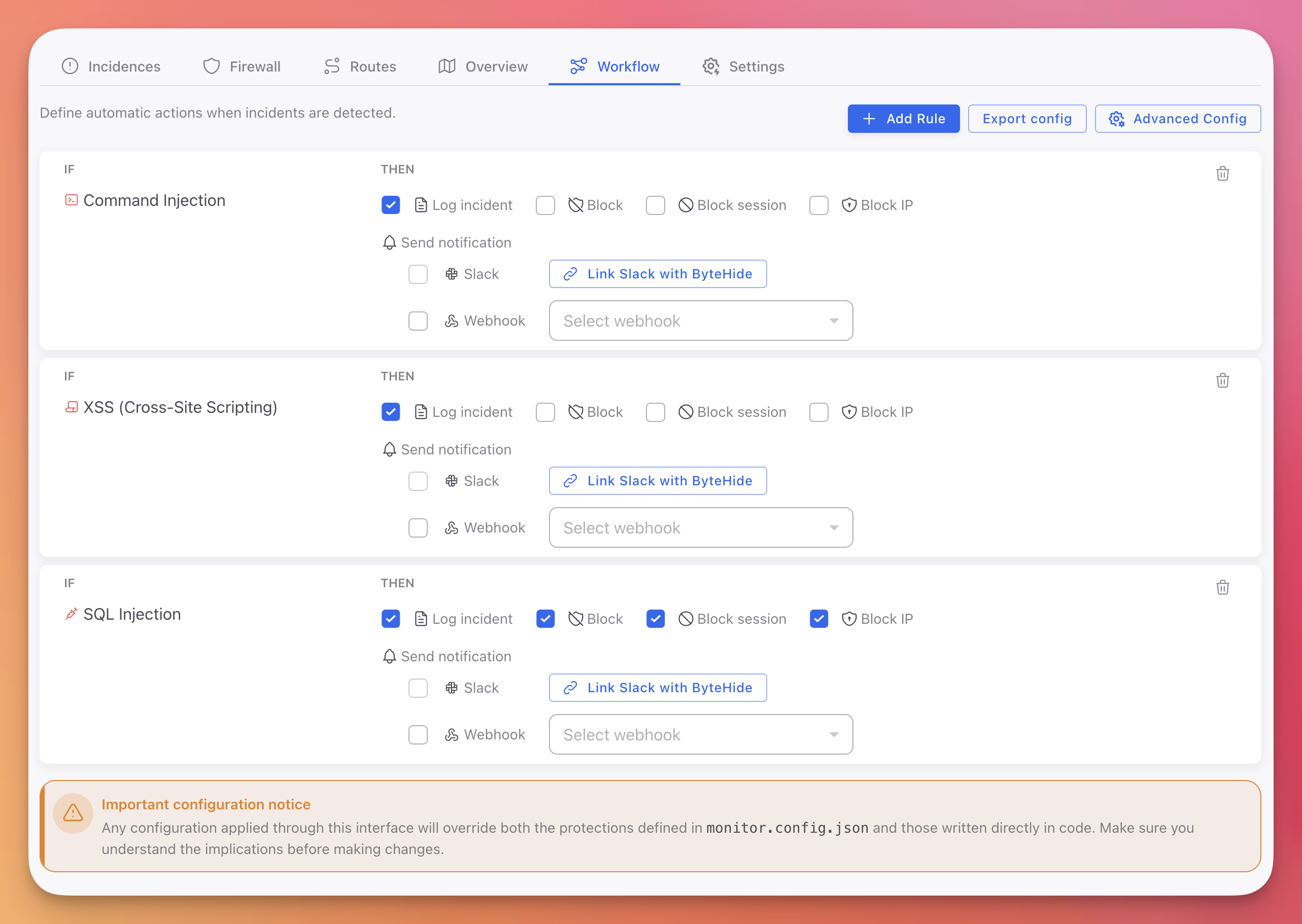 Click to expand
On-Premise / Desktop / Mobile projects:
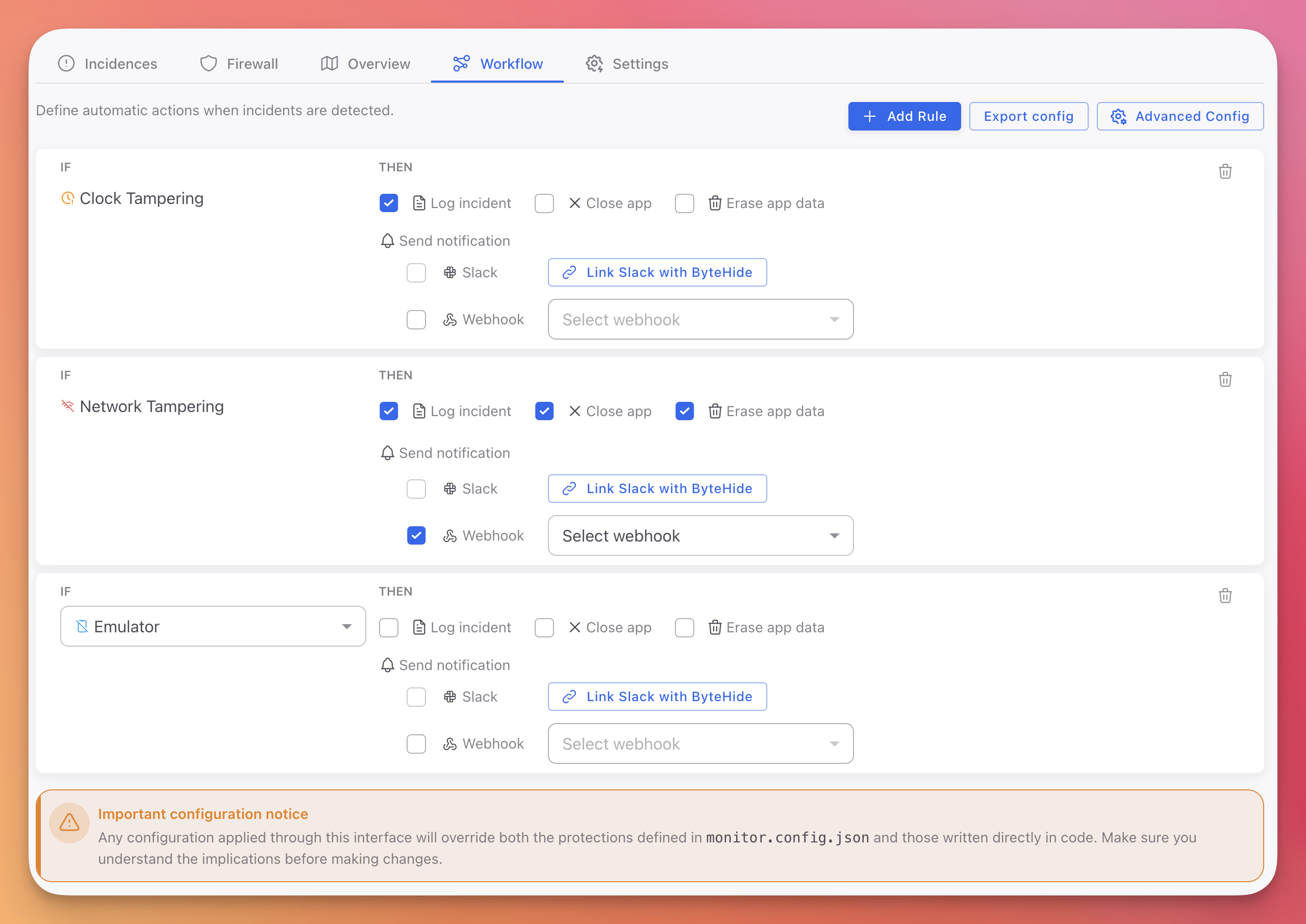 Click to expand
Creating a Rule
Each rule follows an IF/THEN pattern:
- Click + Add Rule
- IF: Select the protection module (SQL Injection, Debugger Detection, Command Injection, etc.)
- THEN: Check the actions to execute when this threat is detected
Available actions depend on your project type:
| Action | On-Premise | Cloud |
|---|---|---|
| Log incident | Yes | Yes |
| Close app | Yes | No |
| Erase app data | Yes | No |
| Block request | No | Yes |
| Block session | No | Yes |
| Block IP | No | Yes |
You can select multiple actions per rule. For example, a SQL Injection rule can Log the incident, Block the request, and Block the IP simultaneously.
Deleting a Rule
Click the trash icon on any rule to remove it. The change applies immediately.
Notifications
Each rule can trigger notifications to alert your team in real-time.
Slack
- Check the Slack checkbox on the rule
- Click Link Slack with ByteHide to connect your workspace
- Select the channel to receive alerts
Webhook
- Check the Webhook checkbox on the rule
- Select a webhook from the dropdown (or create one)
- Monitor sends a POST request with the full incident data to your endpoint
Use webhooks to integrate with:
- SIEM systems (Splunk, ELK, Datadog)
- Ticketing (Jira, ServiceNow, PagerDuty)
- Custom alerting pipelines
Export Configuration
Click Export config to download your current workflow rules as a JSON file. This is useful for:
- Version-controlling your security configuration
- Copying rules between projects
- Using as a base for JSON Configuration in offline environments
Advanced Configuration
Click Advanced Config to open the advanced settings panel. These settings control Monitor's operational behavior beyond individual threat rules.
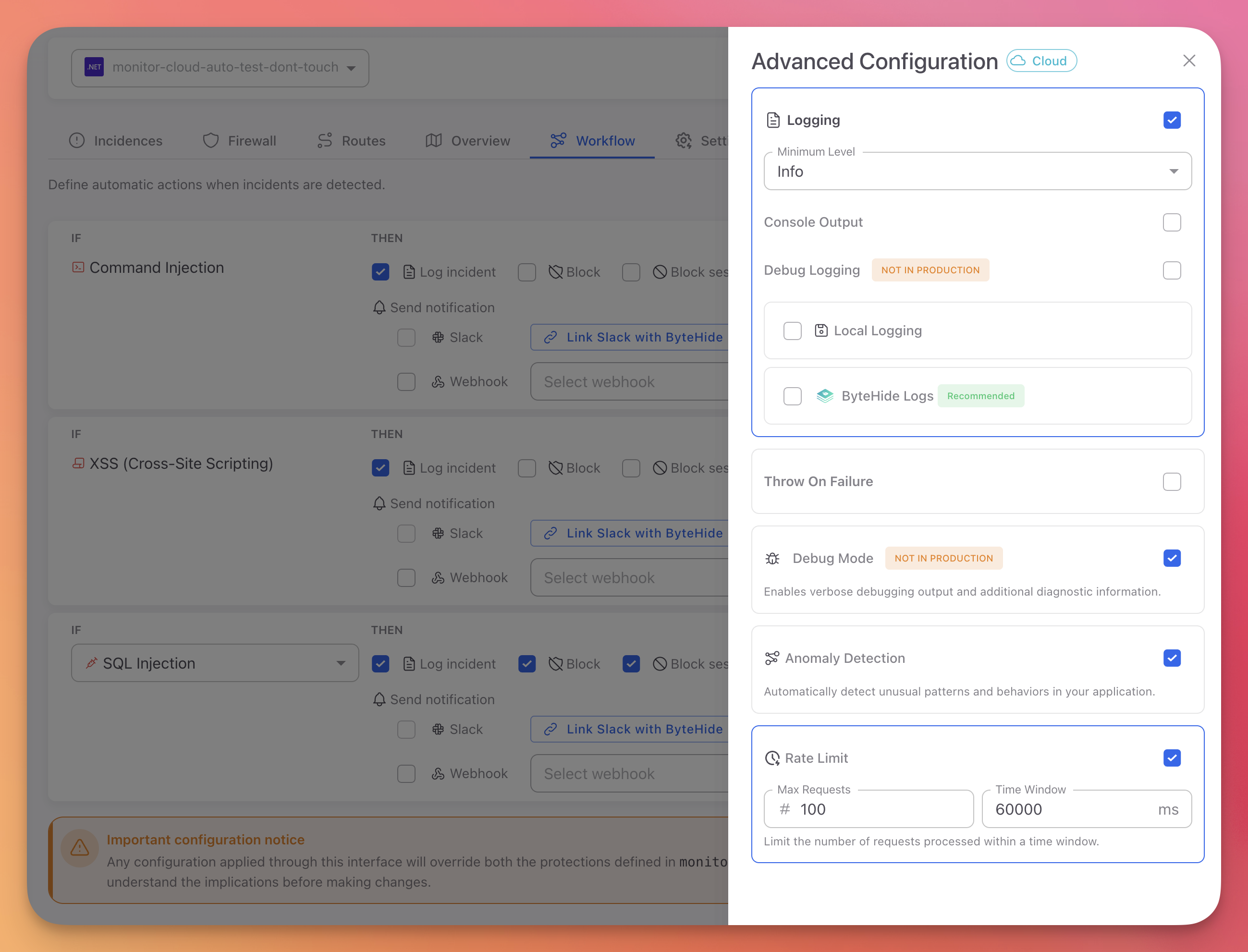 Click to expand
See Advanced Configuration for the full reference of all settings.
Next Steps
Actions Reference
All available actions for Workflow rules
Advanced Configuration
Logging, anomaly detection, rate limiting, and debug mode
Cloud Configuration
How cloud configuration syncs and overrides other sources