Deobfuscate Stack Traces
When your application is protected with Shield, crash reports and stack traces will contain obfuscated names. ByteHide automatically handles deobfuscation so you can debug production issues with the original class and method names.
Before and After Protection
Shield transforms your binary's symbols so that reverse engineers cannot understand your application's structure. Here is what your code looks like before and after protection:
Original Swift code:
class PaymentProcessor {
    private let apiKey: String
    private let gateway: PaymentGateway

    func chargeCustomer(cardToken: String, amount: Double) -> PaymentResult {
        let session = gateway.createSession(apiKey: apiKey)
        let transaction = session.authorize(token: cardToken, amount: amount)
        return transaction.capture()
    }

    func refundTransaction(transactionId: String) -> RefundResult {
        let session = gateway.createSession(apiKey: apiKey)
        return session.refund(transactionId: transactionId)
    }
}
class PaymentProcessor {
private let apiKey: String
private let gateway: PaymentGateway
func chargeCustomer(cardToken: String, amount: Double) -> PaymentResult {
let session = gateway.createSession(apiKey: apiKey)
let transaction = session.authorize(token: cardToken, amount: amount)
return transaction.capture()
}
func refundTransaction(transactionId: String) -> RefundResult {
let session = gateway.createSession(apiKey: apiKey)
return session.refund(transactionId: transactionId)
}
}After Shield protection (symbol renaming):
class a {
    private let d: String
    private let f: b

    func c(g: String, h: Double) -> e {
        let i = f.j(k: d)
        let l = i.m(n: g, o: h)
        return l.p()
    }

    func q(r: String) -> s {
        let i = f.j(k: d)
        return i.t(u: r)
    }
}
class a {
private let d: String
private let f: b
func c(g: String, h: Double) -> e {
let i = f.j(k: d)
let l = i.m(n: g, o: h)
return l.p()
}
func q(r: String) -> s {
let i = f.j(k: d)
return i.t(u: r)
}
}The same transformation applies to Objective-C classes and methods, C functions, and any exported symbol in the Mach-O binary.
How It Works
Every time you build your application with Shield, a mapping file is generated and automatically uploaded to the ByteHide Cloud Panel. This mapping file contains the relationship between the original names and the obfuscated names.
When you encounter an obfuscated stack trace from a crash report, you can decode it instantly from the Cloud Panel or via the API. No additional setup is required: if your project has a valid token, mappings are uploaded and available automatically.
Requirements
To decode stack traces, you will need:
- Your Project Token
- Your Protection Secret (auto-generated during protection, visible in the Cloud Panel build history)
Decoding via the Cloud Panel
The simplest way to decode a stack trace:
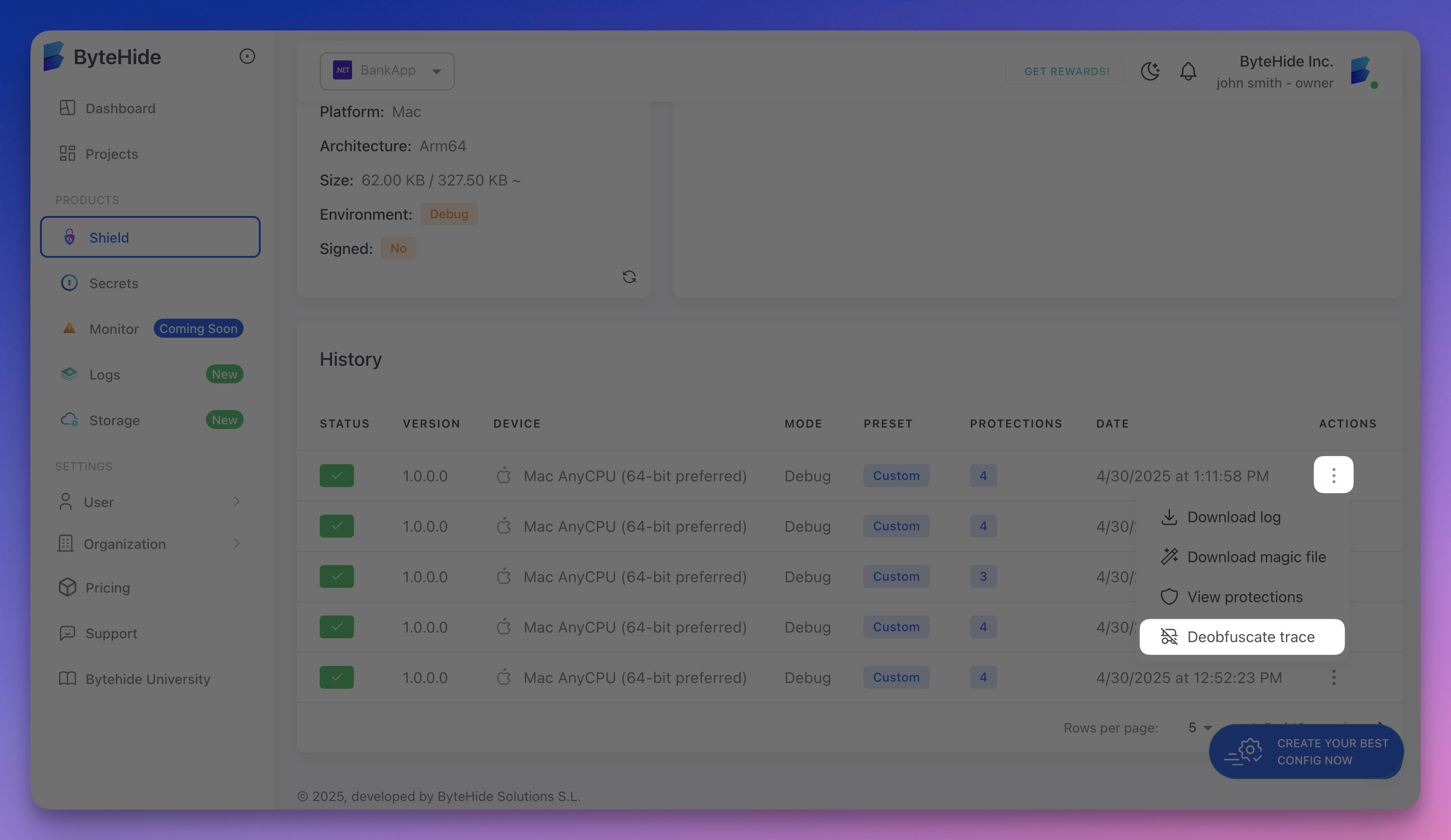
- Go to your project in the ByteHide Cloud Panel
- In the history section, click the three dots (actions) for the build you want to decode
- Select Deobfuscate trace
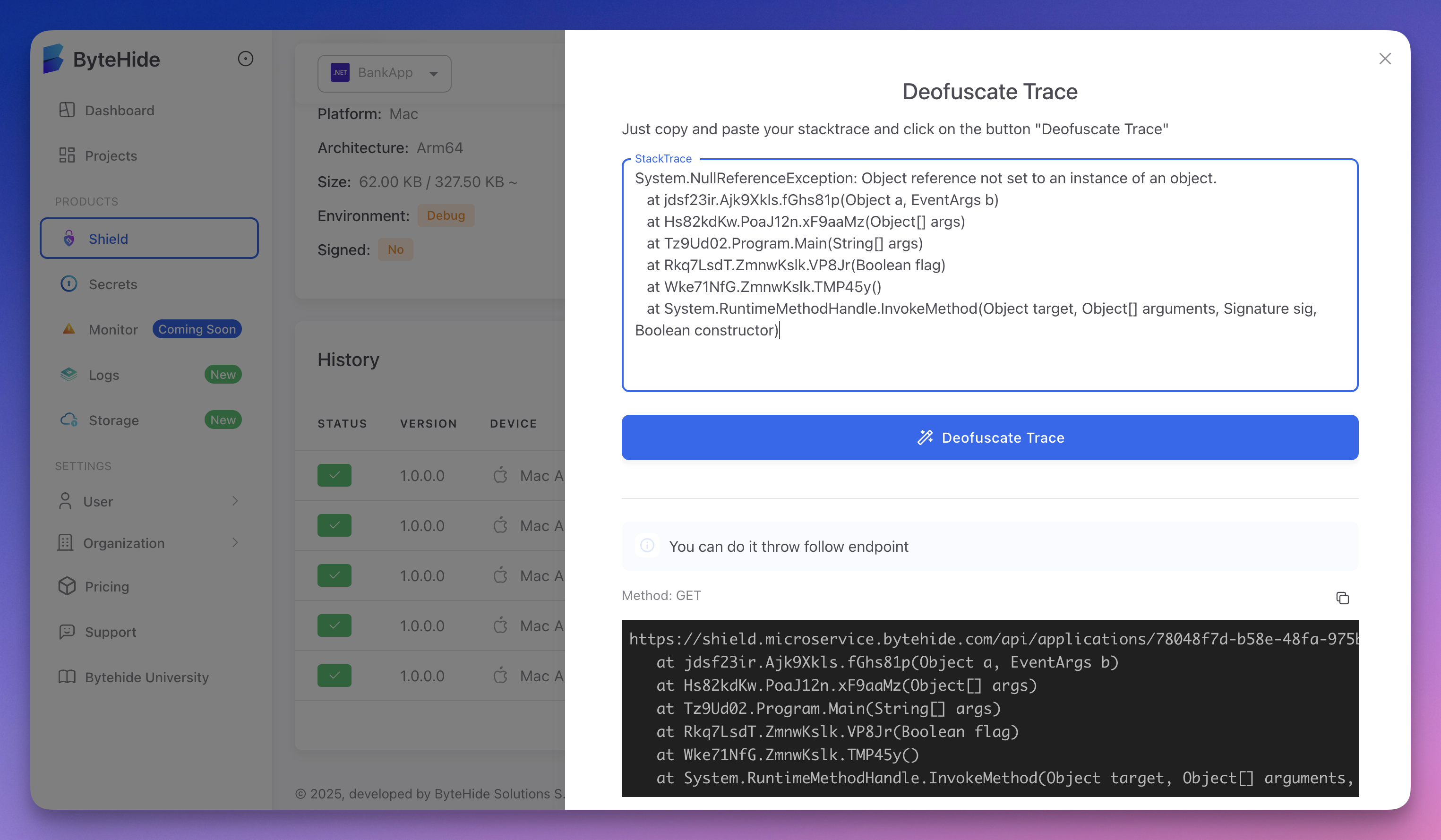
- Paste your obfuscated stack trace and click Deobfuscate Trace
 Click to expand
The panel returns the original, readable stack trace with the real class and method names:
 Click to expand
Obfuscated input:
Exception Type: EXC_BAD_ACCESS (SIGSEGV)

Thread 0 Crashed:
0   MyApp          0x0000000100a3b4c0 a.c + 128
1   MyApp          0x0000000100a3b820 a.q + 64
2   MyApp          0x0000000100a41f10 v.w + 256
3   MyApp          0x0000000100a42a80 x.y + 96
Exception Type: EXC_BAD_ACCESS (SIGSEGV)
Thread 0 Crashed:
0 MyApp 0x0000000100a3b4c0 a.c + 128
1 MyApp 0x0000000100a3b820 a.q + 64
2 MyApp 0x0000000100a41f10 v.w + 256
3 MyApp 0x0000000100a42a80 x.y + 96Decoded output:
Exception Type: EXC_BAD_ACCESS (SIGSEGV)

Thread 0 Crashed:
0   MyApp          0x0000000100a3b4c0 PaymentProcessor.chargeCustomer(cardToken:amount:) + 128
1   MyApp          0x0000000100a3b820 PaymentProcessor.refundTransaction(transactionId:) + 64
2   MyApp          0x0000000100a41f10 CheckoutViewController.processPayment() + 256
3   MyApp          0x0000000100a42a80 OrderManager.submitOrder(cart:) + 96
Exception Type: EXC_BAD_ACCESS (SIGSEGV)
Thread 0 Crashed:
0 MyApp 0x0000000100a3b4c0 PaymentProcessor.chargeCustomer(cardToken:amount:) + 128
1 MyApp 0x0000000100a3b820 PaymentProcessor.refundTransaction(transactionId:) + 64
2 MyApp 0x0000000100a41f10 CheckoutViewController.processPayment() + 256
3 MyApp 0x0000000100a42a80 OrderManager.submitOrder(cart:) + 96Decoding via the API
Shield also provides an API endpoint to decode stack traces from any tool or script:
Endpoint:
GET https://shield.microservice.bytehide.com/api/applications/<project-token>/<protection-secret>?trace=<obfuscated-trace>GET https://shield.microservice.bytehide.com/api/applications/<project-token>/<protection-secret>?trace=<obfuscated-trace><project-token>: Your Project Token<protection-secret>: Your Protection Secret<obfuscated-trace>: The obfuscated stack trace (URL-encoded)
Response codes:
| Code | Meaning |
|---|---|
200 | Original stack trace returned (plain text) |
404 | Application or secret not found |
This makes it easy to integrate deobfuscation into your CI/CD pipeline, crash reporting workflow, or support tools.
Mapping File Format
Shield generates a mapping file for each build that records every symbol transformation. The format maps original symbol names to their obfuscated counterparts:
PaymentProcessor -> a:
    String apiKey -> d
    PaymentGateway gateway -> f
    PaymentResult chargeCustomer(String, Double) -> c
    RefundResult refundTransaction(String) -> q
CheckoutViewController -> v:
    void processPayment() -> w
OrderManager -> x:
    OrderResult submitOrder(Cart) -> y
PaymentProcessor -> a:
String apiKey -> d
PaymentGateway gateway -> f
PaymentResult chargeCustomer(String, Double) -> c
RefundResult refundTransaction(String) -> q
CheckoutViewController -> v:
void processPayment() -> w
OrderManager -> x:
OrderResult submitOrder(Cart) -> yBuild History
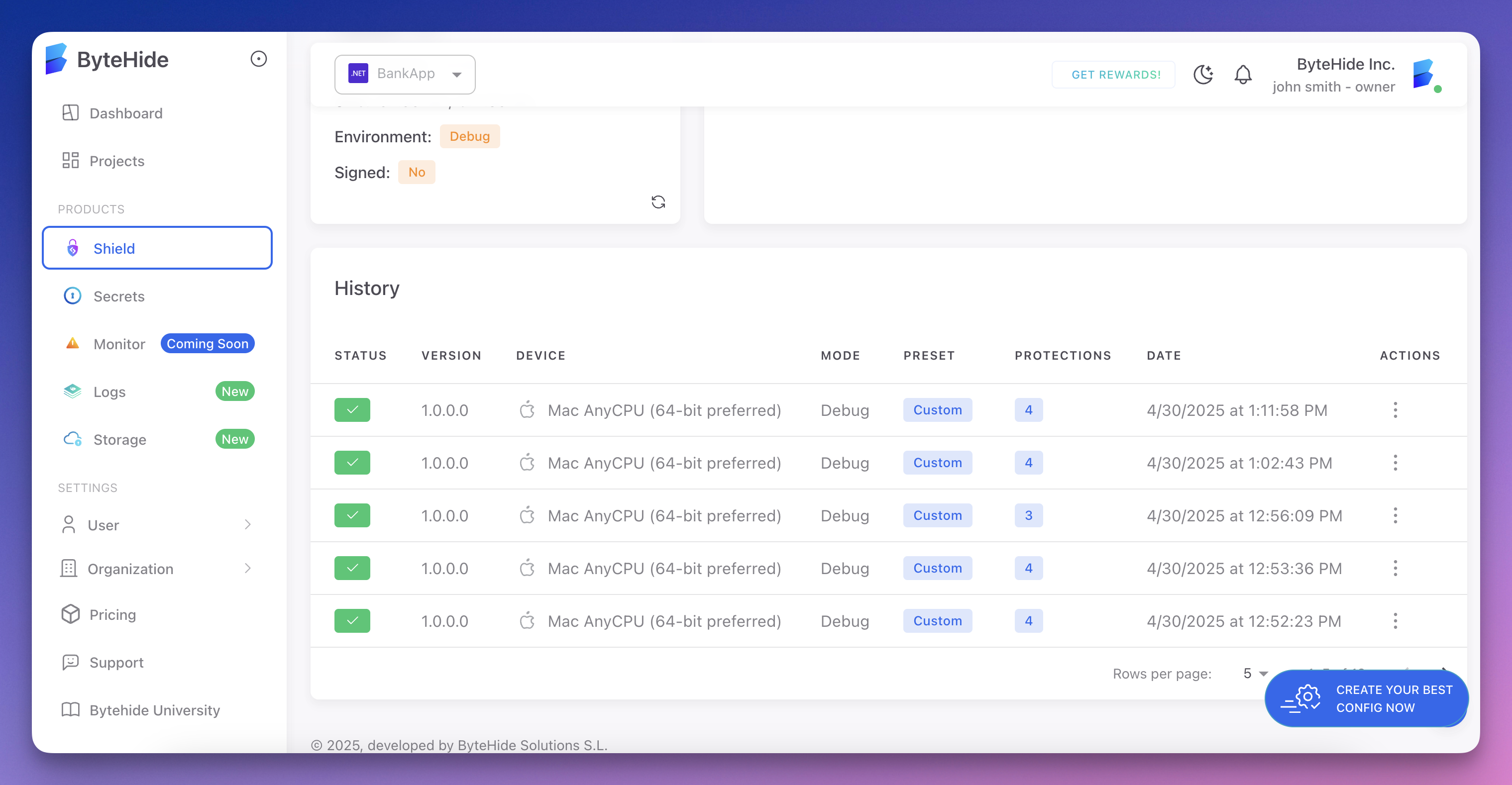
All builds and their mapping files are stored in the Cloud Panel. You can browse previous builds, compare protection configurations, and decode stack traces from any past build:
 Click to expand
Related
- Symbol Renaming - The protection that generates mappings
- String Encryption - Protects string literals alongside symbol renaming
- Cloud Integration - How builds are registered in the cloud